Sync server on the phone
Applies to: iPhone/iPad, Android native, Android Termux
Kioku adds an Advanced tab to Anki’s Preferences, with options for experienced users. Everything there is off until you turn it on, and each option explains its risks first.
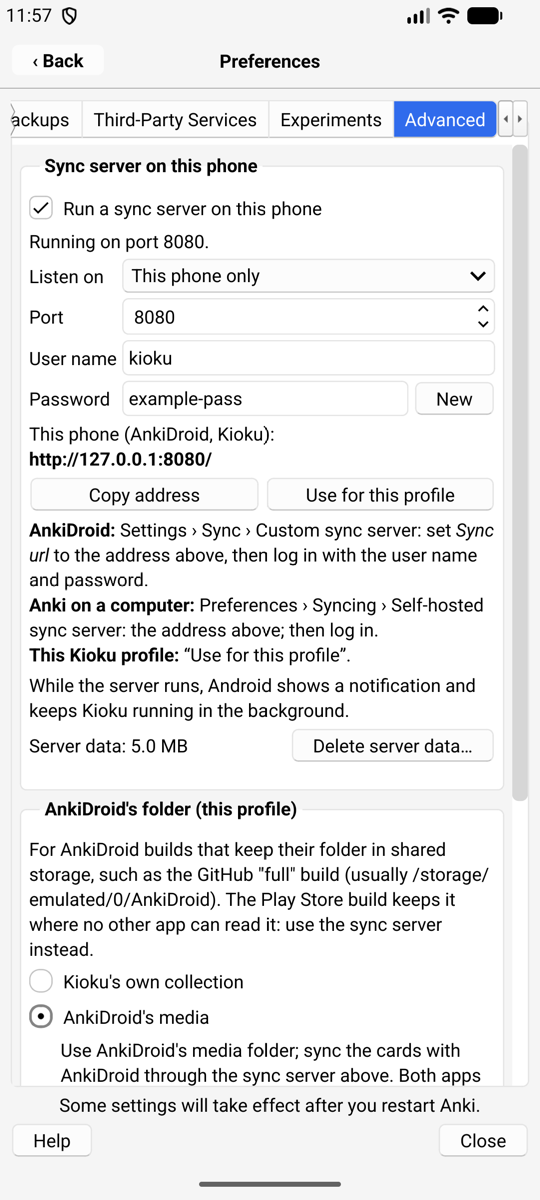
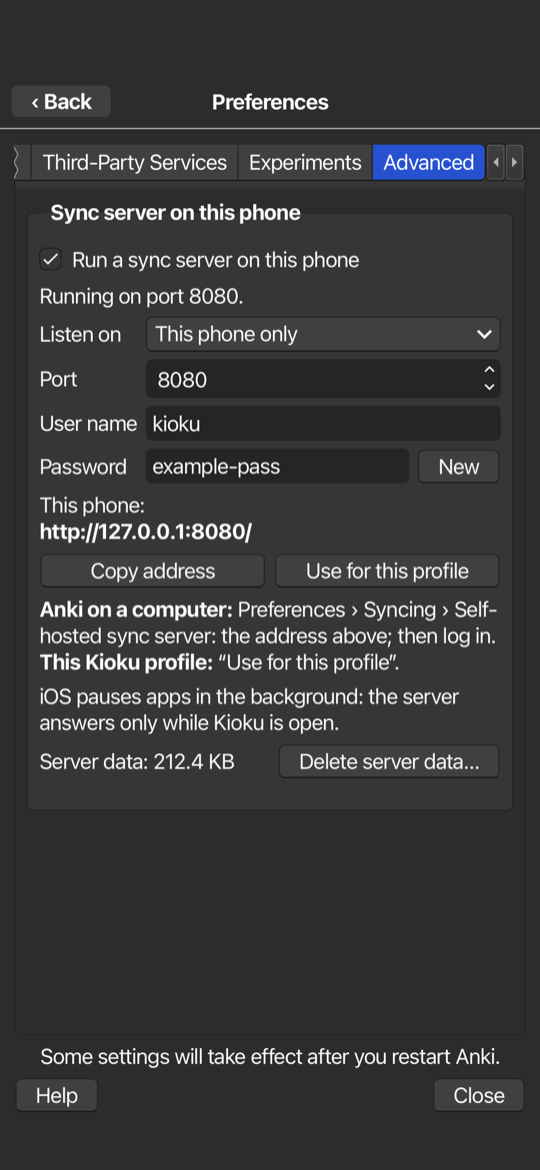
Sync server on this phone
Kioku can run Anki’s own sync server (the one behind anki --syncserver) on
the phone. Then the phone can be the sync server, with no AnkiWeb needed:
- AnkiDroid on the same phone syncs with Kioku: Settings › Sync ›
Custom sync server › Sync URL
http://127.0.0.1:8080/, then log in with the user name and password shown in Kioku. - Kioku’s own profiles sync with it: press Use for this profile.
- Anki on your computers syncs with it over Tailscale (or your Wi-Fi): Preferences › Syncing › Self-hosted sync server.
| Android | iPhone | Android’s notification |
|---|---|---|
 |  |  |
| Setting | Meaning |
|---|---|
| Listen on: This phone only | only apps on the phone can connect (default) |
| Listen on: Tailscale | the phone’s Tailscale address; your Tailscale devices can connect, encrypted by Tailscale |
| Listen on: All networks | any device on the same Wi-Fi or VPN can connect. Plain HTTP: only on networks you trust |
| Port | 8080 by default; choose another if an app already uses it |
| User name, password | a password is made up when you first turn the server on. New makes another one; devices then log in again |
| Delete server data | removes everything synced to the phone’s server; each device’s next sync is a full upload |
Things to know:
- The server keeps its own copy of everything synced to it (collection and media) in Kioku’s private storage. It needs that much free space.
- A device that syncs with the phone no longer syncs with AnkiWeb.
- The first time, choose Upload on the device that has your cards and Download on the others.
- Two devices syncing at the same moment: one of them gets Anki’s “Only one copy of Anki can sync to your account at once” error. Nothing is lost; sync it again a moment later.
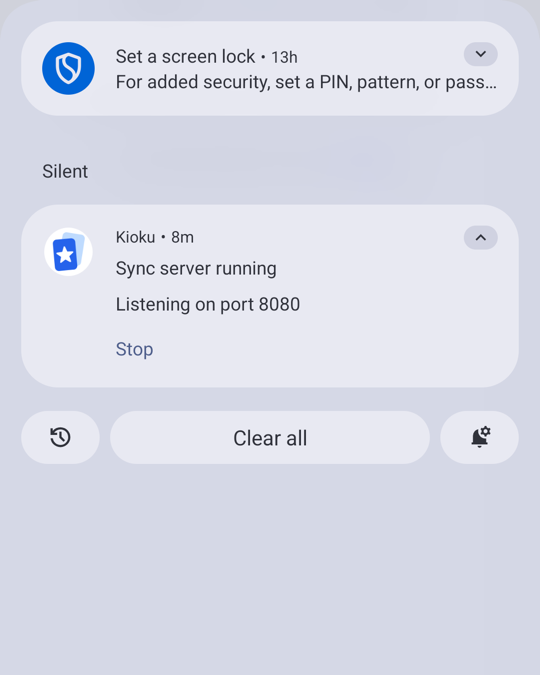
- Android: while the server runs, a notification shows and Kioku keeps running in the background (its Stop action stops the server until Kioku starts again). Allow notifications when Android asks, or the notification stays hidden.
- iPhone: iOS pauses apps in the background, so the server only answers while Kioku is open. It starts again by itself when you come back.