Introduction
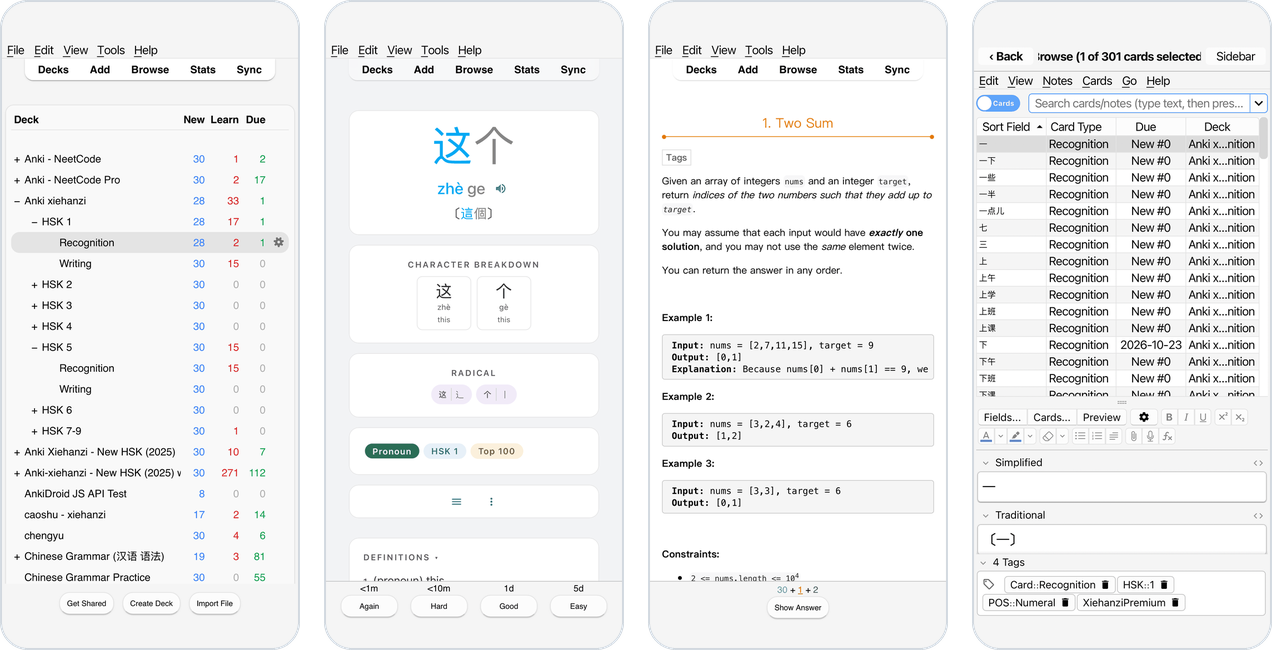
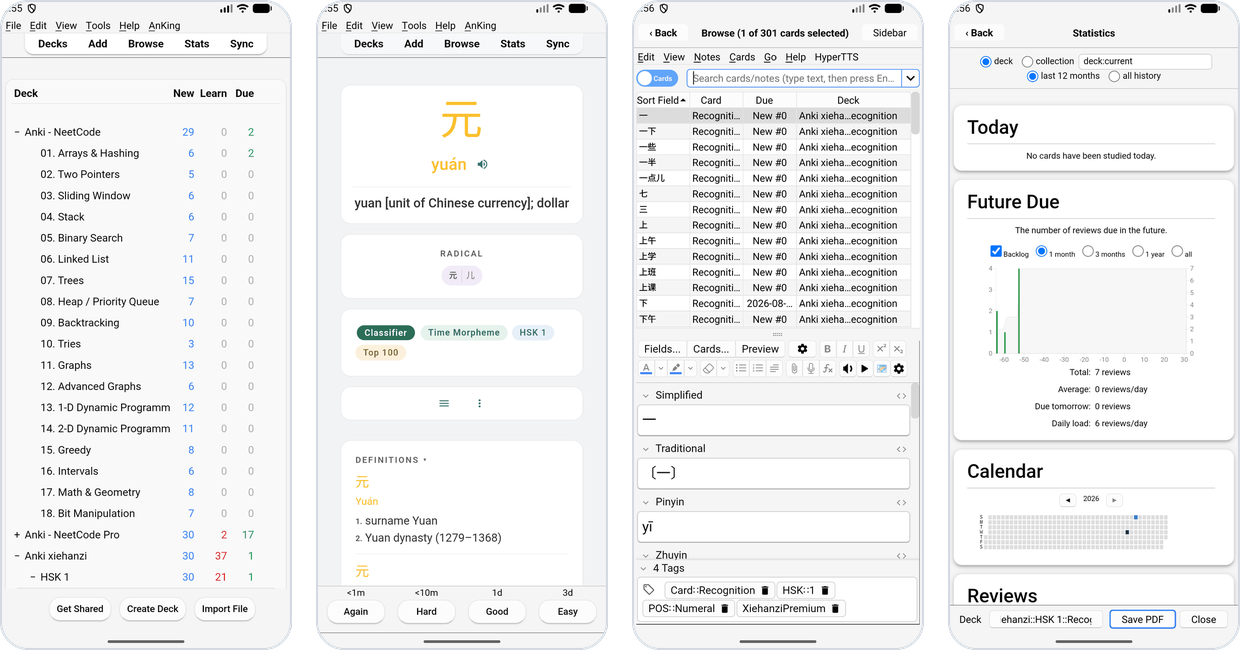
Kioku (記憶, “memory”) runs the unmodified Anki desktop app on iPhone, iPad and Android: the same deck list, reviewer, Browse, editors, statistics and desktop add-ons, made to work with a touch screen. It also runs in a browser tab, and on your own server for use from any browser (Which variant?).
On an iPhone:
This manual and Anki’s manual
Kioku is Anki desktop, so everything about studying, adding cards, deck options, searching, statistics, card templates and so on works exactly as described in the Anki Manual. This manual covers only what is different on a phone or in a browser:
- installing and updating Kioku, or running it on your server,
- how the app behaves on a phone: windows, the Back key, the keyboard, where your files are, add-ons,
- features only Kioku has: a sync server on the phone, sharing AnkiDroid’s media, using the phone’s Anki from a computer,
- what to do when something goes wrong.
| To learn about… | Read |
|---|---|
| Studying, answer buttons, learning steps | Anki: Studying |
| Adding and editing notes | Anki: Adding/Editing |
| Browse and searching | Anki: Browsing, Searching |
| Deck options, FSRS | Anki: Deck Options |
| Profiles | Anki: Profiles |
| AnkiWeb sync | Anki: Syncing |
| Importing and exporting | Anki: Importing, Exporting |
| Statistics | Anki: Statistics |
| Add-ons | Anki: Add-ons |
Kioku’s own questions and bug reports go to Kioku’s GitHub issues, not to Anki’s support: Ankitects doesn’t make Kioku.
“Anki” is a trademark of Ankitects. Kioku is an independent project, not affiliated with or endorsed by Ankitects.
Which variant?
Kioku comes as three phone apps, plus two ways to use it from a browser. All run the same Anki release (26.09.3) and can sync with each other through AnkiWeb or the phone’s sync server.
On a phone or tablet
| iPhone, iPad | Android, native | Android, Termux | |
|---|---|---|---|
| Needs | iOS 17+ | Android 9+, arm64 | Android 7+, arm64, ~1 GB free, 3 GB+ RAM |
| Download size | 39 MB | 48 MB | 235 MB |
| Looks like | a phone app: every window full screen | a phone app: every window full screen | a small Linux desktop with a dock |
| Web pages (cards, editor, stats) | the system web view | Android System WebView | Qt WebEngine, as on a PC |
| Add-ons | yes, except ones that start programs | yes, except ones that start programs | yes, as on Linux |
| Other Linux apps | no | no | yes, on demand |
| Sync server on the phone | yes | yes | yes |
| AnkiDroid’s media | no | yes | yes |
| Remote desktop | no | no | yes |
| Pick it if | you have an iPhone or iPad | you want a light, fast app | you want the full desktop and every add-on |
Both Android variants can be installed side by side; they keep separate collections.
In a browser
| Web (experimental) | Your server (Docker) | |
|---|---|---|
| Needs | a recent Chrome, Edge or Safari | a server or NAS (amd64 or arm64) with Docker; any browser |
| Where Anki runs | in the browser tab (WebAssembly) | on the server; the browser shows its screen |
| Your collection | in that browser on that device | on the server, one copy for all your devices |
| Add-ons | most pure-Python ones | yes, as on Linux |
| Pick it if | you want to try Kioku without installing anything | you want one Anki, with a large collection and your add-ons, from every device |
See Web browser and Self-hosted server.
iPhone and iPad
Android, native
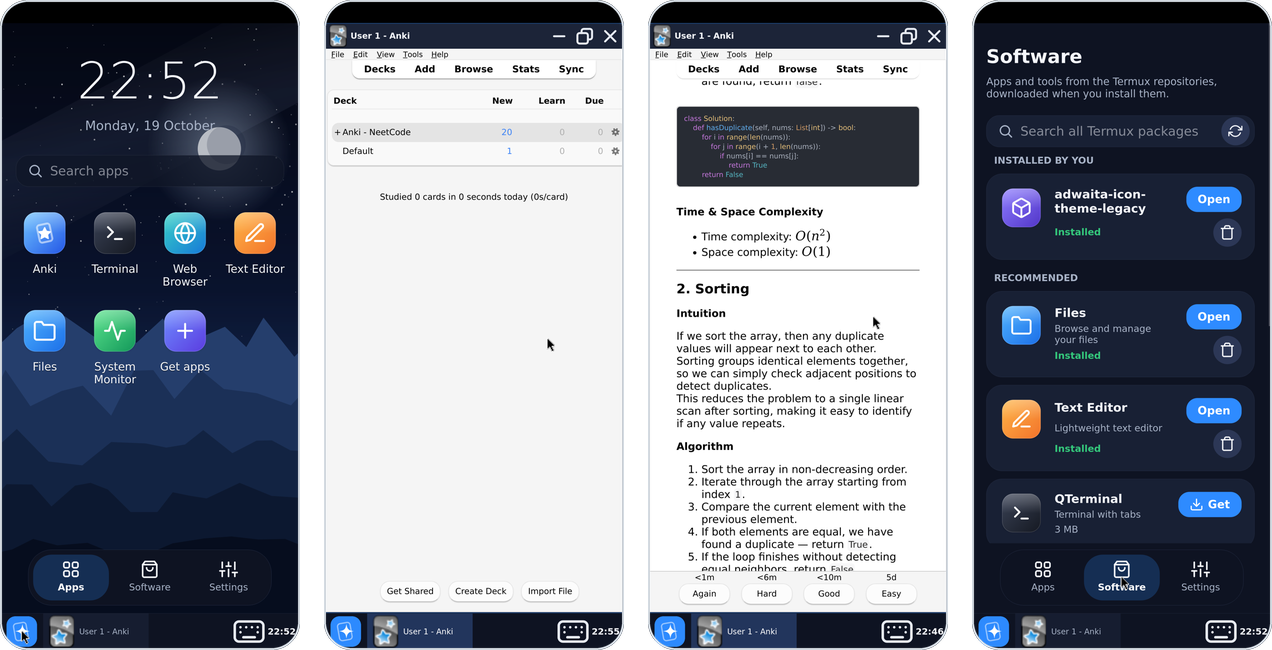
Android, Termux
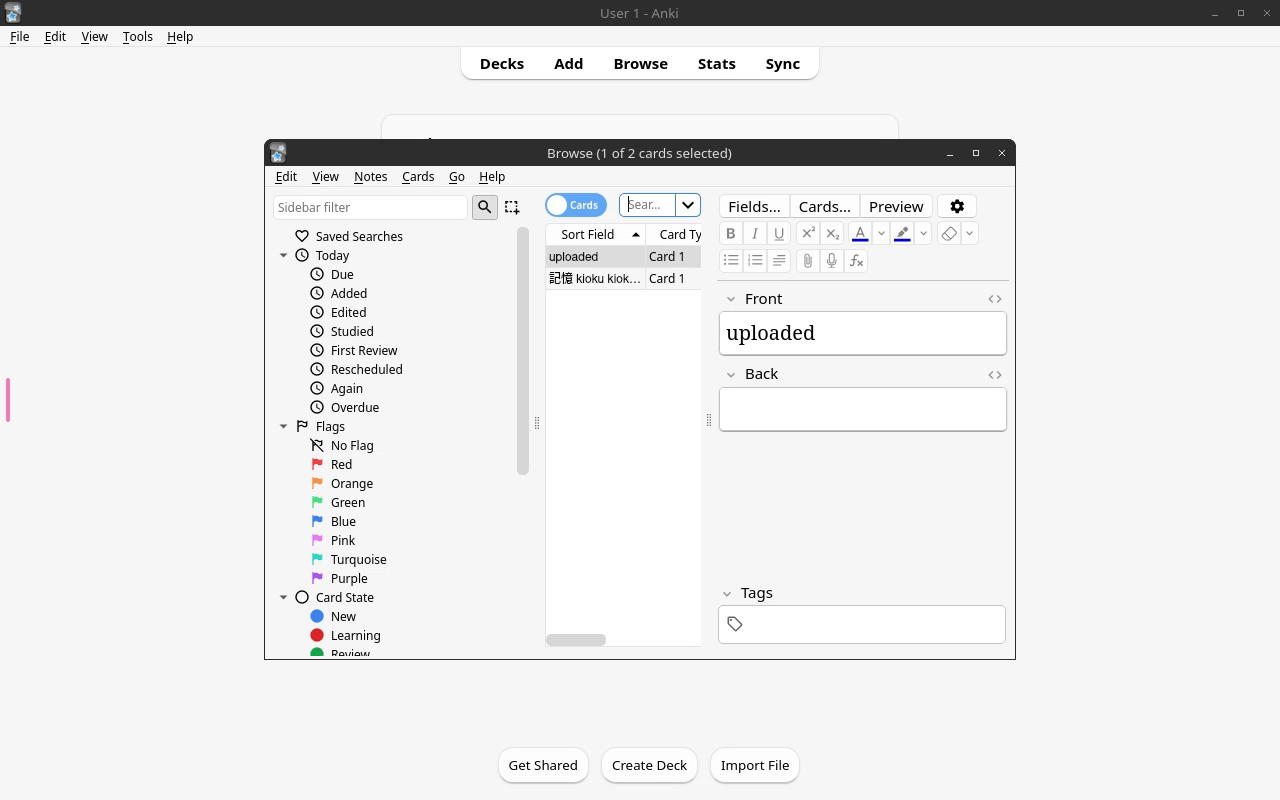
Your server, in a browser
Installing & Updating
Every release is on GitHub Releases:
| File | Variant |
|---|---|
Kioku-iOS-<version>-unsigned.ipa | iPhone and iPad |
Kioku-Android-<version>-arm64.apk | Android, native |
Kioku-Termux-<version>-arm64.apk | Android, Termux |
Without installing an app:
| Where | |
|---|---|
| kioku.krmanik.workers.dev | Web browser (experimental) |
ghcr.io/krmanik/kioku-desktop | Self-hosted server (Docker) |
Kioku isn’t in the App Store or Google Play. On iPhone and iPad it’s also on TestFlight (sign up).
Updating keeps your data. Install the new version over the old one: collections, media, add-ons and settings stay. Don’t uninstall first: uninstalling deletes the app’s data, unless you synced or exported it.
Before a big update, sync with AnkiWeb or make a backup (File › Create Backup), as you would on a computer.
iPhone and iPad
Applies to: iPhone/iPad
Needs iOS or iPadOS 17 or newer.
Two ways to get Kioku:
- TestFlight, Apple’s beta app: no signing, no 7-day refresh. Sign up with a short form to get the link.
- Sideloading the unsigned
.ipafrom GitHub Releases: you sign it with your own Apple ID while installing.
Kioku won’t be in the App Store; TestFlight is the only Apple-signed way.
TestFlight
TestFlight has a limited number of testers, so the link comes from a signup form that allows one signup per Google account.
- Fill in the signup form; the TestFlight link is shown after you submit.
- Install TestFlight from the App Store.
- Open the link on your iPhone or iPad and tap Accept, then Install.
New builds show up in TestFlight; turn on Automatic Updates there.
- Each build expires 90 days after it was uploaded. TestFlight shows the days left. Install the newer build before then; if a build has expired, Kioku won’t open until you install a newer one. Your data is kept.
- TestFlight builds can be a little ahead of the GitHub release.
- TestFlight shares some data with the developer; see Privacy.
AltStore (recommended)
- Install AltStore with AltServer on your computer.
- In AltStore: Sources › +, add
https://github.com/krmanik/kioku/releases/latest/download/altstore.json. - Install Kioku from that source.
New versions then show up in AltStore’s updates.
Other sideloading tools
Download Kioku-iOS-<version>-unsigned.ipa from the
latest release and
install it with Sideloadly, SideStore,
LiveContainer or any tool that signs apps with your Apple ID.
Things to know
- Sideloaded apps signed with a free Apple ID expire after 7 days. AltStore and SideStore refresh them in the background; with Sideloadly, install again before it expires. An expired app won’t open, but its data is kept: installing again brings it back.
- To update, install the new
.ipaover the old one (same bundle id). Your data stays. - A TestFlight copy and a sideloaded copy may be separate apps with separate
data. To switch, sync with AnkiWeb or export a
.colpkg(File › Export) first. - Kioku’s files are in the Files app › On My iPhone › Kioku. See Your Files.
Problems with AltServer: see Troubleshooting.
Android, native
Applies to: Android native
Needs Android 9 or newer on a 64-bit ARM phone (arm64-v8a: nearly every phone from the last years).
- On the phone, download
Kioku-Android-<version>-arm64.apkfrom the latest release. - Open it. Android asks to allow installing apps from your browser or file manager: allow it, go back, and tap Install.
- Open Kioku.
To update, download the new APK and install it the same way. Data stays.
Kioku runs next to AnkiDroid and the Termux variant; each has its own collection. To share cards between them, sync (AnkiWeb, or the phone’s own sync server).
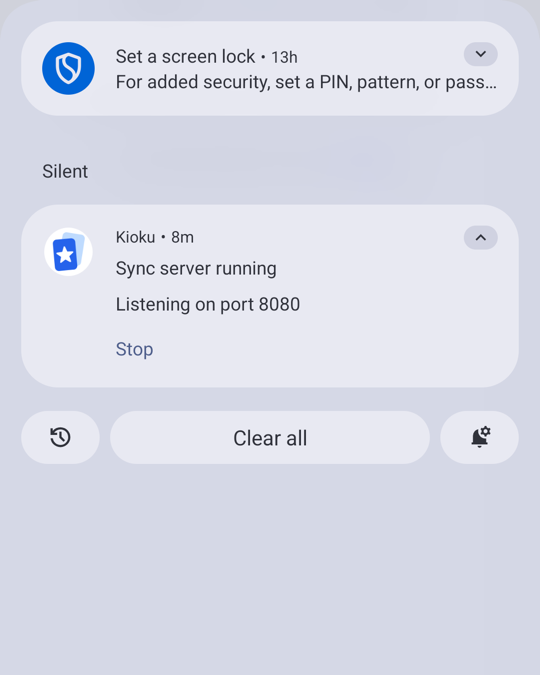
Android asks to allow notifications the first time the sync server starts; allow it, or its notification stays hidden.
Android, Termux
Applies to: Android Termux
Needs Android 7 or newer on a 64-bit ARM phone, about 1 GB of free storage, and 3 GB of RAM or more for a smooth experience.
You don’t need Termux or Termux:X11: everything is inside the APK.
- On the phone, download
Kioku-Termux-<version>-arm64.apkfrom the latest release. - Open it, allow installing from your browser or file manager, and install.
- Tap Kioku. The first start unpacks the runtime, about a minute; the splash screen shows the progress. Then the desktop opens with Anki.
Updating
Install the new APK over the old one. The first start after an update unpacks the new runtime again. Your home folder (Anki’s collections, add-ons, settings) is never touched, and Linux apps you installed from Software are reinstalled automatically.
Removing
Uninstalling deletes everything inside the app, including collections that weren’t synced or exported. Kioku never deletes anything in the phone’s own storage (Downloads, pictures…), even when you linked those folders.
Web browser (experimental)
Applies to: web
Kioku also runs in a browser tab, nothing to install: kioku.krmanik.workers.dev. Anki itself runs inside the tab (compiled to WebAssembly), and your collection lives in that browser.
This is an early test version, for trying things out. It may crash or lose data.
- Back up first. Before using a collection you care about, export it
with scheduling information from Anki desktop or your phone
(File › Export: a
.colpkg, or an.apkgwith Include scheduling information). - Sync with a test AnkiWeb account, not the one you use.
- Your collection stays in that browser on that device. Clearing the site’s data deletes it, and Safari deletes it after 7 days without a visit (unless it is on the Home Screen). To keep one collection on your own server and open it from any browser instead, see Self-hosted server.
Browsers
Tested in Chrome on a computer, and in Safari on a Mac and on an iPhone 15 Pro Max. Opening it downloads about 31 MB and takes 20–40 s on a fast connection. Phones have less memory: keep collections small there.
Install it as an app
The page opens full screen from the home screen, without the address bar:
- iPhone, iPad (Safari): Share › Add to Home Screen.
- Android (Chrome): ⋮ › Add to Home screen (or Install app).
- Chrome or Edge on a computer: the install button in the address bar.
On iPhone and iPad the home screen app keeps its own storage, apart from Safari’s: import or sync your collection again there.
Files
File › Import opens the browser’s file picker. Exports and backups are downloaded like any file from a website.
Self-hosted server (Docker)
Applies to: Docker
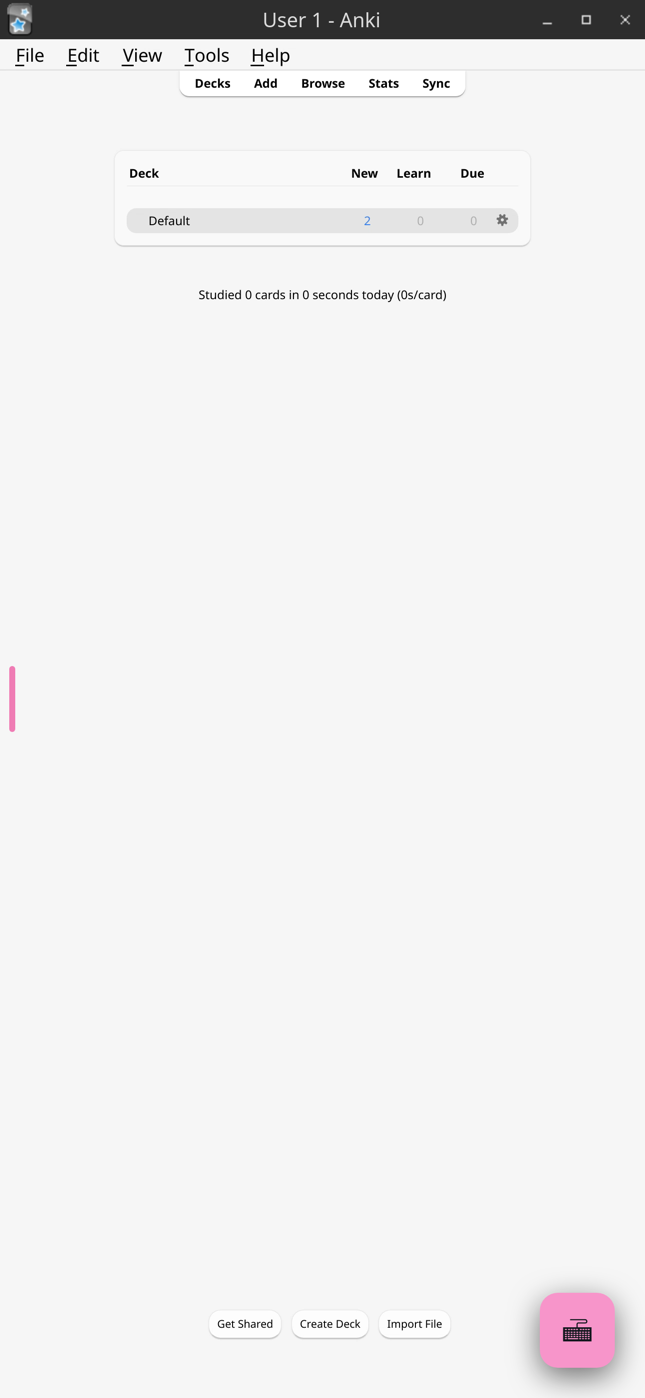
Run the real Anki desktop app on your own server or NAS and use it from any browser. Anki, its add-ons and your whole collection (media included) stay on the server: the browser only shows Anki’s screen and sends your keyboard, mouse and touches, so a large collection is never downloaded, copied or synced to your devices. Experimental: back up first.
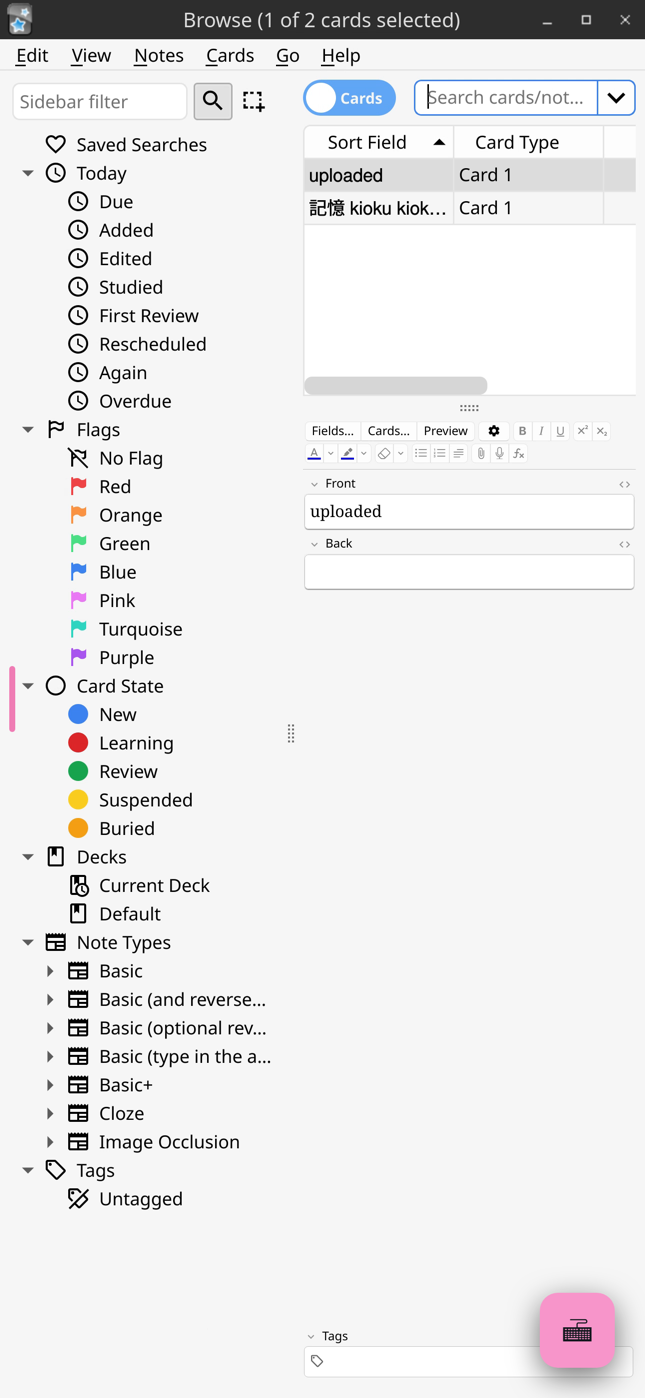
On a phone, with ANKI_FIT_SCREEN | Browse on a phone |
|---|---|
 |  |
Start it
With Docker Compose (compose.yaml):
services:
  anki:
    image: ghcr.io/krmanik/kioku-desktop:latest
    restart: unless-stopped
    shm_size: 1gb
    stop_grace_period: 1m
    ports:
      - "127.0.0.1:3000:3000"
    environment:
      PUID: 1000
      PGID: 1000
      TZ: Etc/UTC
      CUSTOM_USER: anki
      PASSWORD: change-me
    volumes:
      - ./anki-config:/config
docker compose up -d
Set TZ to your time zone (for example Europe/Berlin): Anki’s day starts
by it. Everything Anki keeps is in anki-config/Anki2: profiles,
collections, media, add-ons and backups (each profile’s backups folder).
Back that folder up.
The image is for 64-bit Intel/AMD and ARM servers.
Your existing collection
Stop the container, then copy your Anki folder from the computer where you
use Anki desktop (where it is)
into anki-config/Anki2, and start it again:
docker compose stop
rsync -a ~/.local/share/Anki2/ server:path/to/anki-config/Anki2/
docker compose start
The files must belong to the PUID/PGID user. You can also sync it down
from AnkiWeb instead (see Syncing).
HTTPS
Open it through a reverse proxy with a certificate: browsers play the stream
only on https:// (or http://localhost on the server itself). Port 3000 is
plain http for the proxy; the container’s port 3001 is https with a
self-signed certificate, for trying it on your network. The proxy must pass
WebSockets.
Caddy
anki.example.com {
    reverse_proxy 127.0.0.1:3000
}
nginx
server {
    listen 443 ssl;
    server_name anki.example.com;
    # ssl_certificate ...;
    location / {
        proxy_pass http://127.0.0.1:3000;
        proxy_http_version 1.1;
        proxy_set_header Upgrade $http_upgrade;
        proxy_set_header Connection "upgrade";
        proxy_set_header Host $host;
        proxy_read_timeout 1h;
        proxy_buffering off;
    }
}
CUSTOM_USER/PASSWORD is a basic browser login. For a server reachable
from the internet, put a stronger login in front (Authelia, Authentik,
your proxy’s own) and never expose it without one: whoever gets in can use
the whole container.
Using it
- One screen for all devices. Every browser that opens it sees the same Anki; you can switch between your computer and phone in the middle of a review.
- Sound plays in the browser. Click the page once if it stays silent: browsers wait for a click before playing sound.
- The side menu (the tab at the left edge) has the on-screen keyboard, clipboard, file transfer, full screen and the stream’s quality and scaling settings.
- Copy and paste text and images between your device and Anki (for example an image into the editor or Image Occlusion).
Files from your device
Anki only sees the server’s files. To bring a file in (a shared deck, a
.colpkg, images for notes or Image Occlusion), drop it on the page or use
Upload in the side menu: it lands in the Desktop folder, where
Anki’s Import and Add image windows open. Exports are saved in the
same folder by default, and Files in the side menu downloads them.
On a phone
Anki’s desktop layout is wider than a phone. Set ANKI_FIT_SCREEN: "true"
to fit it: on a screen narrower than a desktop, Anki’s pages are zoomed out
and its windows fill the screen; wider screens are left alone. The side
menu’s scaling setting changes the size of everything. Turn the phone
sideways for more room.
Settings
| Variable | ||
|---|---|---|
CUSTOM_USER, PASSWORD | browser login | |
PUID, PGID | 1000 | the user that owns anki-config |
TZ | Etc/UTC | time zone (Anki’s day starts by it) |
ANKI_FIT_SCREEN | true: fit Anki on phones (above) | |
ANKI_ARGS | extra arguments for Anki |
The image is built on LinuxServer’s Selkies base image; its settings (resolution, video quality, hardening) work as described there.
Syncing
Not needed between your devices. Sync works as in Anki desktop, with AnkiWeb or your own sync server, for example to also use AnkiDroid or the Kioku apps.
Add-ons
Add-ons run in Anki on the server, as on a Linux computer: install them from
Tools › Add-ons as usual. Add-ons that only ship code for Windows or
macOS don’t work. To reach an add-on’s web server (such as AnkiConnect)
from outside, make it listen on 0.0.0.0 in its settings and publish its
port in compose.yaml.
Updating and stopping
docker compose pull && docker compose up -d
Stopping the container closes Anki the way quitting does (its collection
closed, a backup made); allow it the minute in stop_grace_period.
Getting Started
Applies to: iPhone/iPad, Android native, Android Termux, web, Docker
First start
Like Anki on a computer, Kioku asks for the language the first time, then opens the deck list with an empty profile (User 1).
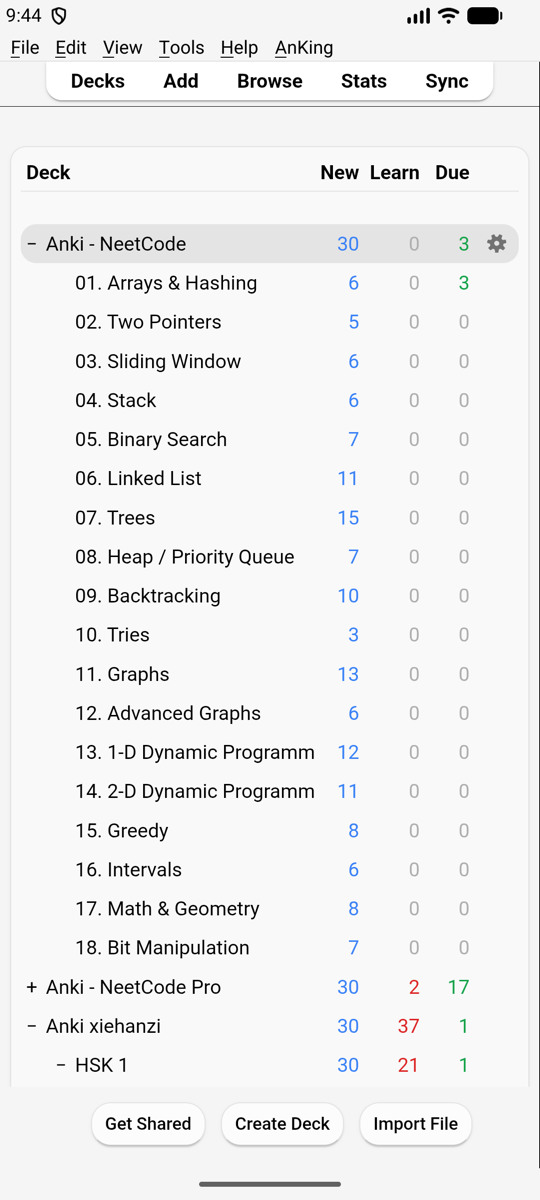
From here it’s Anki: see Getting Started in Anki’s manual.
Bringing your cards
Pick one:
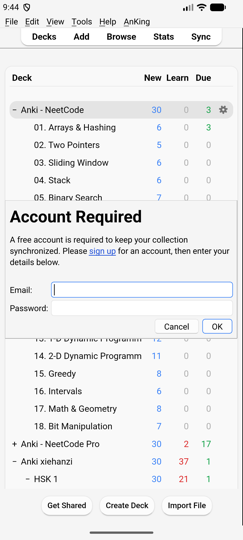
- AnkiWeb. Tap Sync in the top bar and log in with your AnkiWeb account. In an empty profile choose Download to get your collection. Login and media sync work as on a computer (Anki: Syncing). The login stays after restarting Kioku.
- A collection file. Export a
.colpkg(or.apkg) from Anki on your computer, put it on the phone, and import it: see Your Files. - AnkiDroid on the same Android phone. Sync both apps through the phone’s sync server, no AnkiWeb needed.
- Your server (Docker). Copy your whole Anki folder there: see Your existing collection.
Several people or setups? Use profiles (File › Switch Profile), as in Anki.
Next
- Using Kioku on a phone: how windows, Back and the keyboard work.
- Add-ons: installing desktop add-ons on the phone.
Using Kioku on a Phone
Anki desktop was made for a mouse, a keyboard and big windows. Kioku keeps Anki unchanged and adapts the way its windows behave:
- Native apps (iPhone, Android): every window full screen, popups as cards, Back closes windows.
- Termux desktop: a small desktop with a dock, touch screen or mouse pad mode.
- Your Files: importing decks, where exports and backups go.
- Add-ons: installing and what works.
The screens inside each window (deck list, reviewer, Browse, editor, statistics, deck options) are Anki’s own; Anki’s manual describes them.
Native apps (iPhone, Android)
Applies to: iPhone/iPad, Android native
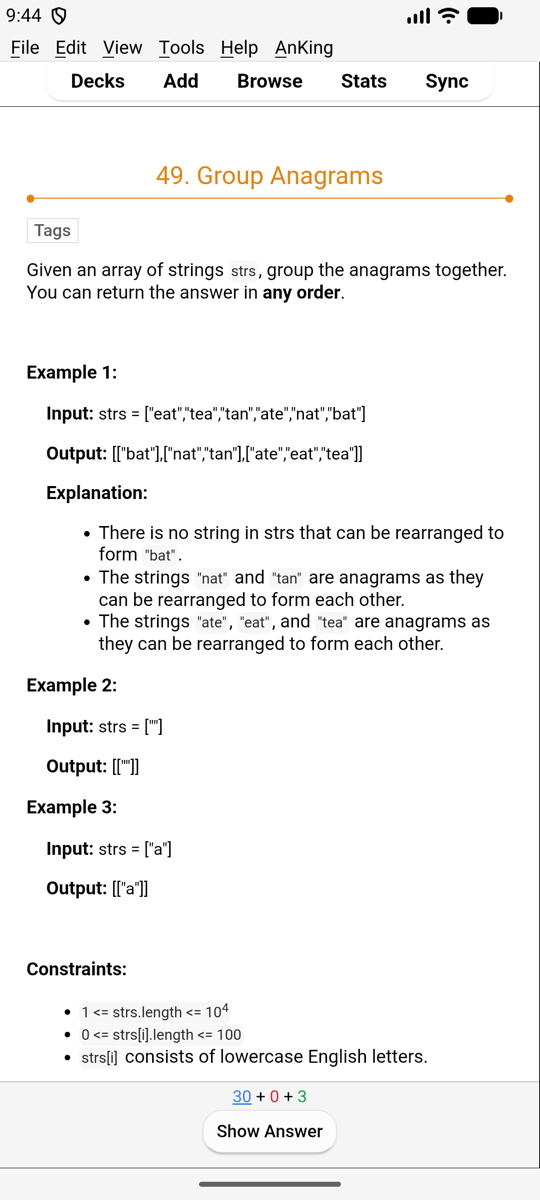
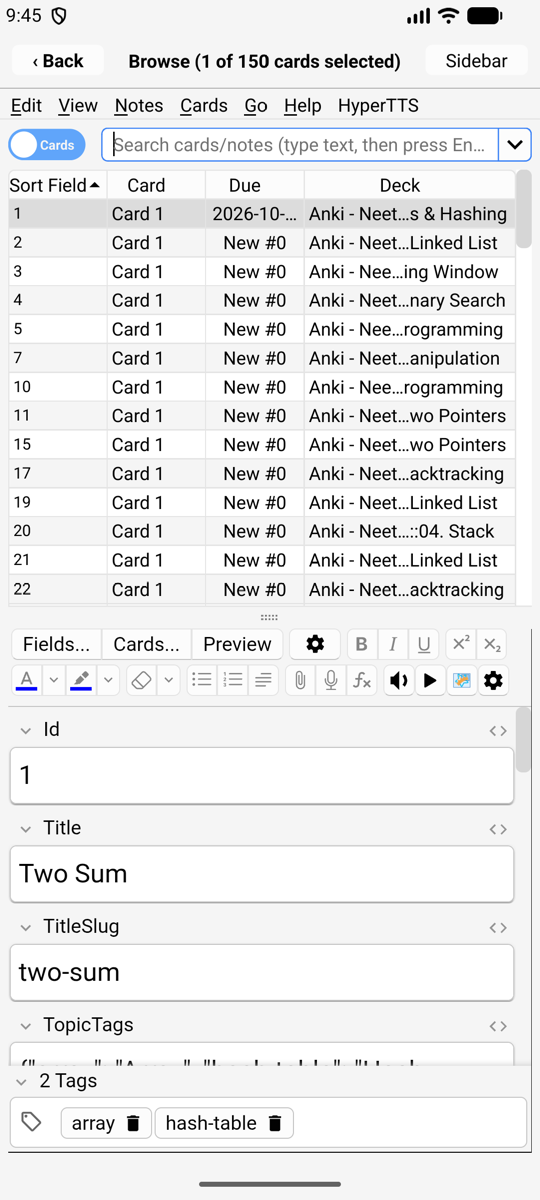
| Deck list | Reviewing | Browse |
|---|---|---|
|  |  |
Windows
- The main window (deck list, overview, reviewer) fills the screen, with Anki’s menu bar at the top: File, Edit, View, Tools, Help and add-on menus.
- Every other window (Browse, Add, Statistics, Preferences, Deck Options…) opens full screen on top, with a title bar.
- Closing a window:
- iPhone, iPad: ‹ Back in its title bar.
- Android: the Back key or gesture closes the top window. On the main window it moves Kioku to the background (Anki keeps running).
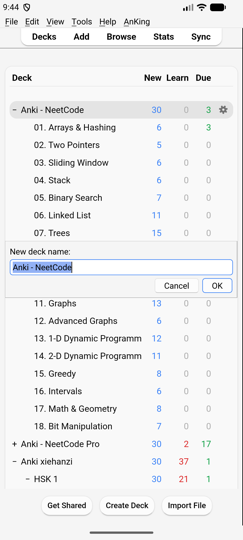
- Small windows (the AnkiWeb login, Create Deck, Rename, message boxes) are cards in the middle of the screen, sized to their content, and move up above the keyboard while you type.
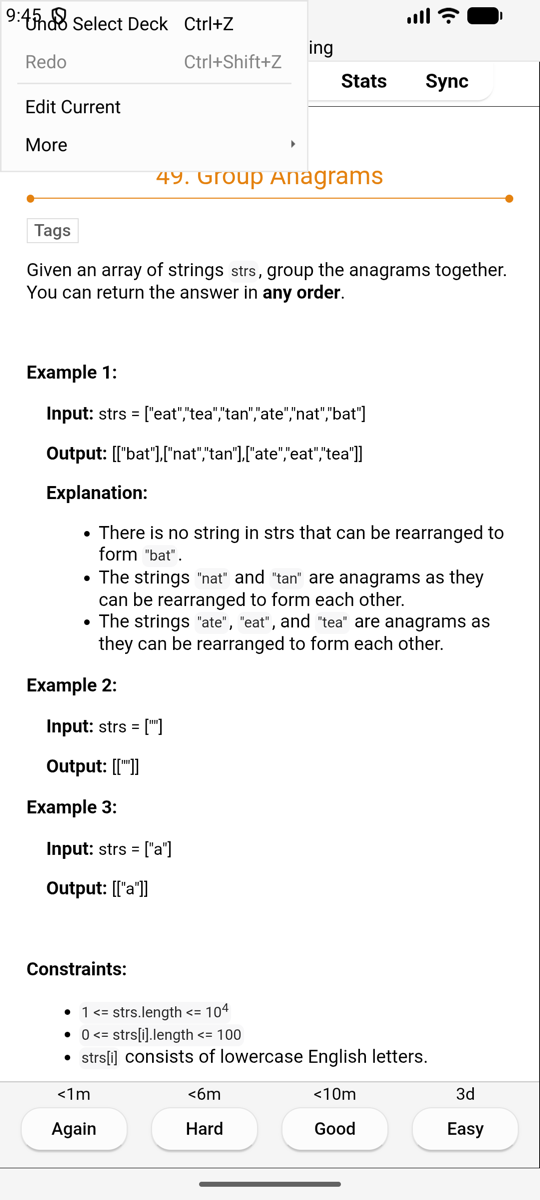
| A prompt | A login | The Edit menu while reviewing |
|---|---|---|
 | |  |
Touch
- Tap for a click, drag to scroll lists and pages.
- While reviewing, Anki hides its Edit and More buttons on a narrow screen; Kioku offers them in the Edit menu (Edit Current, More: flag, bury, suspend, card info…).
- Landscape works; windows follow the rotation.
- Keyboard shortcuts work with a hardware keyboard (Space to show the answer, 1–4 to answer, as in Anki).
Full screen
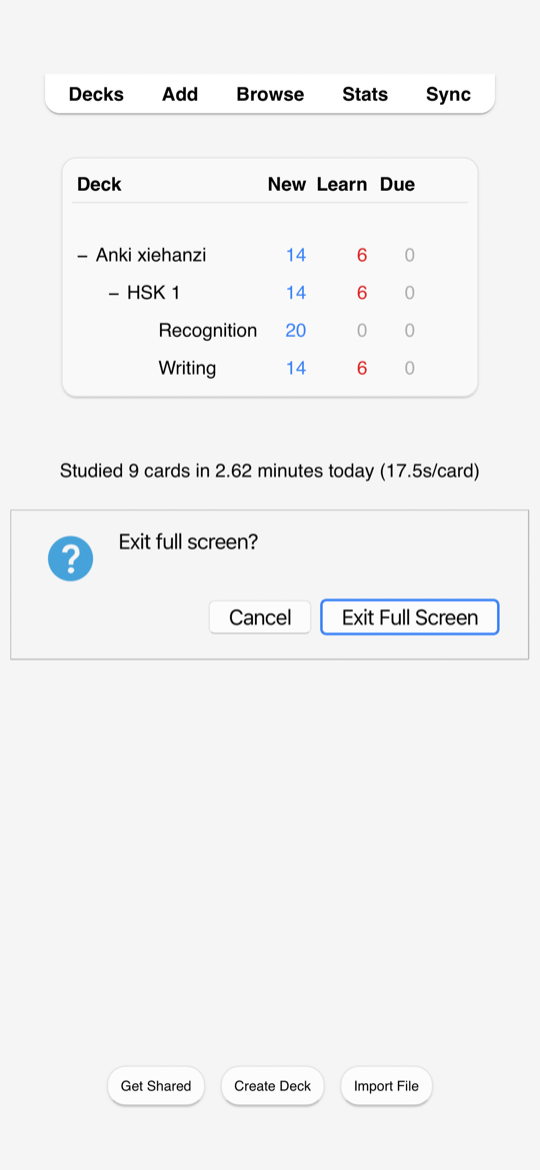
View › Full Screen hides the menu bar (and the status bar) for more room. To leave it, swipe right on the screen and tap Exit Full Screen (or Cancel to stay in full screen). Kioku reminds you of this for a few seconds when you enter full screen. On a page that scrolls sideways, scroll it back to its left edge first.
Keyboard
The on-screen keyboard opens when you tap a text field and closes when you tap elsewhere. On Android the keyboard’s Enter key (✓) submits single-line fields: Browse’s search, prompts, the login.
Sound and speech
- Card audio (mp3, wav, Ogg Vorbis, Opus) plays as in Anki, with the replay buttons.
{{tts}}text-to-speech uses the phone’s voices: iOS’s voices, and Android’s text-to-speech engine (Settings › Text-to-speech on the phone). Install a voice for the language you need there.
In the background
- Android: Kioku keeps running in the background like other apps; Android may stop it when memory runs low. Your collection is saved whenever Kioku leaves the screen.
- iPhone, iPad: iOS pauses Kioku in the background. It saves first.
Web views
Cards, the editor and statistics are web pages in the system’s web view. Card
JavaScript works. For card template authors: the web views can be inspected
with Safari’s Web Inspector (iOS) or chrome://inspect (Android).
Differences from Anki on a computer
- File dialogs are the phone’s own file picker (Your Files).
- “Show in folder” / “Open folder” show the folder’s path instead of a file manager on Android.
- Add-ons that start other programs don’t work (Add-ons).
- The card types editor (Cards…) is cramped in portrait; turn the phone.
Termux desktop
Applies to: Android Termux
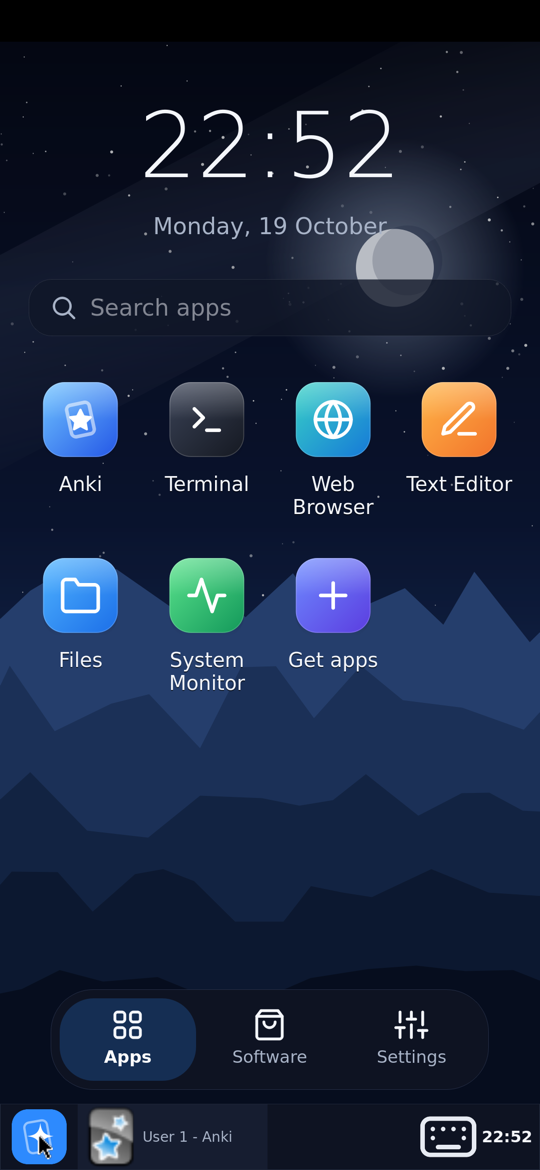
The Termux variant starts a tiny Linux desktop with Anki open. Anki runs exactly as on a Linux PC; closing Anki returns to the desktop, where the Anki icon opens it again.
| Desktop | Software | Settings |
|---|---|---|
 |  |  |
The desktop
- Apps: a clock, search, Anki, Terminal and every app you installed.
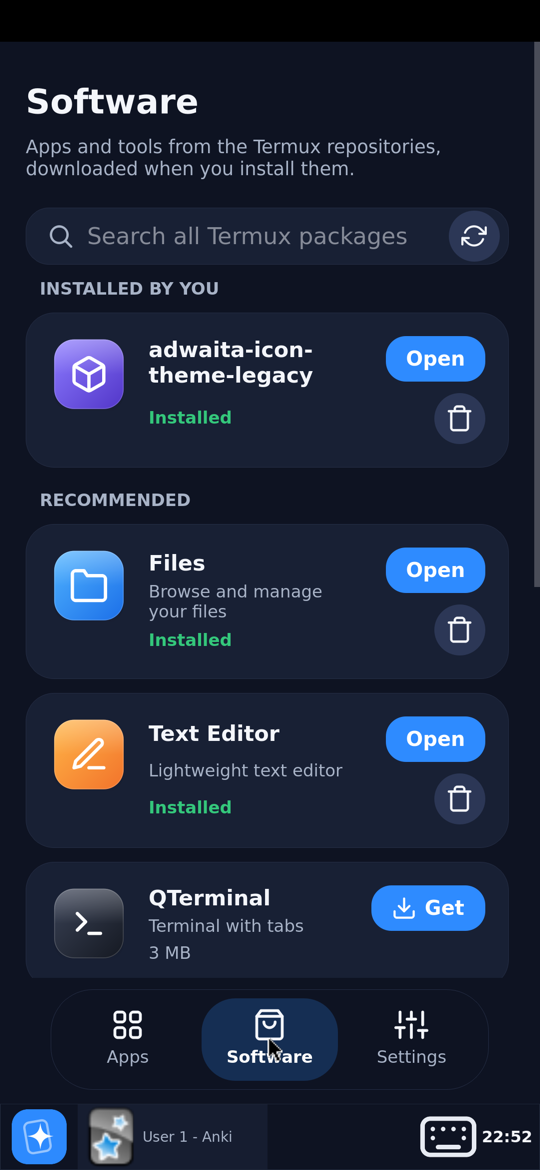
- Software: recommended Linux apps (Files, Text Editor, QTerminal, Web Browser, Image Viewer, Archives, System Monitor) and a search over every package in the Termux repositories. Install or remove with one tap.
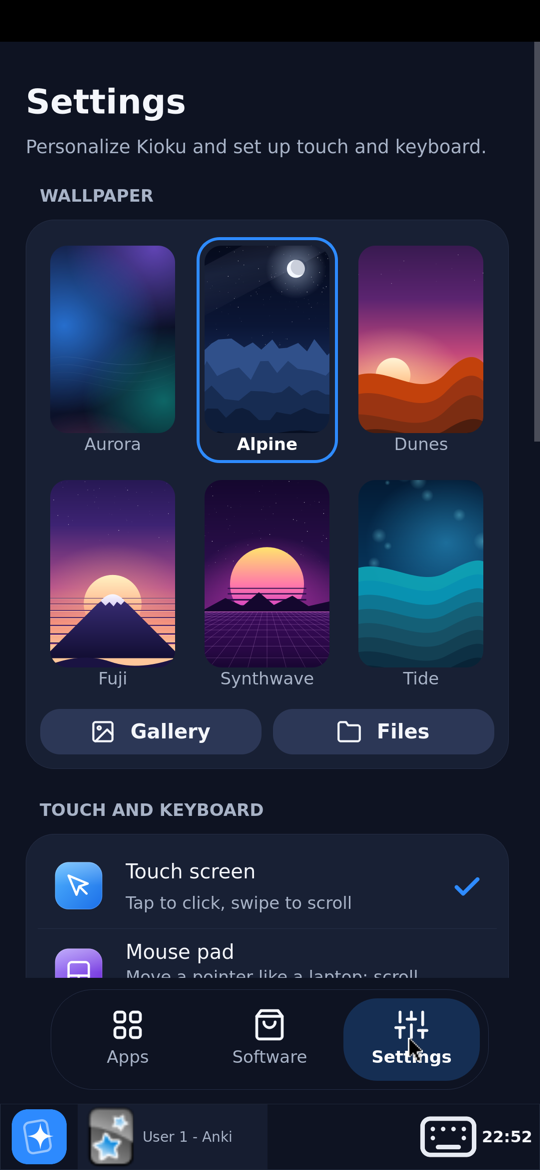
- Settings: wallpaper (six built in, or your own picture), touch screen or mouse pad, keyboard, import a deck, phone storage, display settings, remote desktop, restart desktop, Power off.
The dock
| To… | Do this |
|---|---|
| see the desktop | tap the Kioku button at the start of the dock; tap again to get the windows back |
| switch windows | tap a window in the dock |
| show or hide the keyboard | the keyboard button in the dock |
In landscape the dock moves to the right edge.
Touch screen or mouse pad
Settings › Touch screen: tap to click, drag to scroll (with momentum). Settings › Mouse pad: one finger moves a pointer, tap to click, two fingers scroll; like a laptop’s touchpad.
Other apps (web browser, file manager) get real touch events: drag to scroll, long press to select text.
Keyboard
Text fields open the Android keyboard; tapping elsewhere closes it. In other apps, the keyboard opens when you tap where text can be typed (a terminal, a text box). The dock’s keyboard button always works.
Closing Kioku
Settings › Power off closes Anki (it saves the collection) and ends the session.
If start-up fails
The splash screen shows what went wrong, with:
- Retry,
- Safe mode: Anki without add-ons (for a broken add-on),
- Repair runtime: unpacks the runtime again; your decks are kept,
- Share log: send the log with a bug report.
Your Files
Applies to: iPhone/iPad, Android native, Android Termux (differences noted per variant)
Kioku keeps Anki’s data (profiles, collections, media, backups, add-ons) inside the app. It survives updates; uninstalling deletes it.
Importing
File › Import (or Import File under the deck list) opens the phone’s
file picker. Pick a .colpkg, .apkg, text or CSV file; Anki then imports it
as described in Anki: Importing.
A big .colpkg with media can take minutes on a phone; keep Kioku open.
| Variant | Also |
|---|---|
| iPhone, iPad | Put files in Files › Kioku first, or pick them from iCloud Drive. |
| Android, native | Any folder the system picker shows: Downloads, Drive… |
| Termux | Settings › Import a deck from the phone, or open/share an .apkg/.colpkg from another app to Kioku. |
Images for the editor and Image Occlusion are picked the same way.
Exporting, Save PDF and backups
| Variant | Exports and PDFs go to |
|---|---|
| iPhone, iPad | Files › On My iPhone › Kioku › Exports |
| Android, native | Android/data/io.ankidesk.kioku/files/Exports (see below) |
| Termux | the home folder, or a linked phone folder (Settings › Phone storage) |
Statistics › Save PDF writes there too.
On Android 11 and newer, most file managers can’t open Android/data.
Connect the phone to a computer over USB to copy them, or use AnkiWeb sync
instead of export files.
Backups are made automatically, as in Anki: Backups. File › Create Backup makes one now; restore with File › Switch Profile › Open Backup.
iPhone: the Files app
Files › On My iPhone › Kioku shows:
| Folder | What |
|---|---|
Anki2/ | profiles, collections, media, add-ons (as on a computer) |
Exports/ | exported decks, PDFs |
Don’t change files in Anki2/ while Kioku is open.
Termux: phone storage
Settings › Phone storage asks for Android’s all-files access and links the phone’s folders (Downloads, Documents, Pictures…) into Kioku’s home folder, so Files and Anki can reach them. Tap again to unlink. Kioku’s home folder also shows in Android’s Files app.
Add-ons
Applies to: iPhone/iPad, Android native, Android Termux
Kioku runs Anki desktop’s add-ons. Install them as on a computer: Tools › Add-ons › Get Add-ons…, enter the add-on’s code from AnkiWeb, and restart Kioku. See Anki: Add-ons.
.ankiaddon files can be installed with Install from file… in the same
window.
What works
On the native apps (iPhone, Android) add-ons work unless they need one of:
- starting another program (iOS forbids it; on Android there is nothing to start). Example: MeCab readings in Japanese Support.
- Qt WebEngine features, such as AnkiWebView Inspector. Use Safari’s Web
Inspector or
chrome://inspectinstead. - Native libraries built for Windows, macOS or Linux PCs.
On the Termux variant, add-ons behave as on Linux.
Tested
All load on iPhone and Android:
| Add-on | Code | Result |
|---|---|---|
| AnkiConnect | 2055492159 | works (HTTP API on 127.0.0.1:8765) |
| Review Heatmap | 1771074083 | works; slightly wider than a phone screen |
| Anki Simulator | 817108664 | opens |
| AnKing Note Types Easy Customization | 952691989 | works |
| Advanced Browser | 874215009 | loads |
| Fill the blanks | 1933645497 | loads |
| Colorful Tags / Hierarchical Tags | 594329229 | works |
| Customize Keyboard Shortcuts | 24411424 | loads |
| Edit Field During Review Cloze | 385888438 | works |
| Speed Focus Mode | 1046608507 | loads |
| True Retention | 613684242 | works |
| HyperTTS | 111623432 | works on Android |
| Color Confirmation | 1084228676 | works |
| Japanese Support | 3918629684 | Kanji Stats works; MeCab readings don’t |
| AnkiWebView Inspector | 31746032 | doesn’t work (needs Qt WebEngine) |
Full results: docs/testing.md.
A broken add-on
If Kioku fails at start-up after installing an add-on:
- Termux: use Safe mode on the error screen, then remove the add-on.
- iPhone, iPad: delete the add-on’s folder in Files › Kioku ›
Anki2/addons21/(Tools › Add-ons shows each add-on’s folder name). - Android, native: if Kioku still opens, disable the add-on in Tools › Add-ons. Otherwise open an issue on GitHub: reinstalling keeps the add-on.
Report add-ons that work or don’t on GitHub.
Kioku-only Features
Things Anki on a computer doesn’t do, all off until you turn them on:
| Feature | Variants | Where |
|---|---|---|
| Sync server on the phone: AnkiDroid, Kioku’s profiles and Anki on your computers sync with the phone instead of AnkiWeb | iPhone, Android native, Android Termux | Preferences › Advanced |
| AnkiDroid’s media: a profile uses AnkiDroid’s media folder, so big media is stored once; syncs when you switch apps (native only) | Android native, Android Termux | Preferences › Advanced |
| Remote desktop: use the phone’s Anki from a computer’s web browser or VNC viewer | Android Termux | Settings › Remote desktop |
Sync server on the phone
Applies to: iPhone/iPad, Android native, Android Termux
Kioku adds an Advanced tab to Anki’s Preferences, with options for experienced users. Everything there is off until you turn it on, and each option explains its risks first.
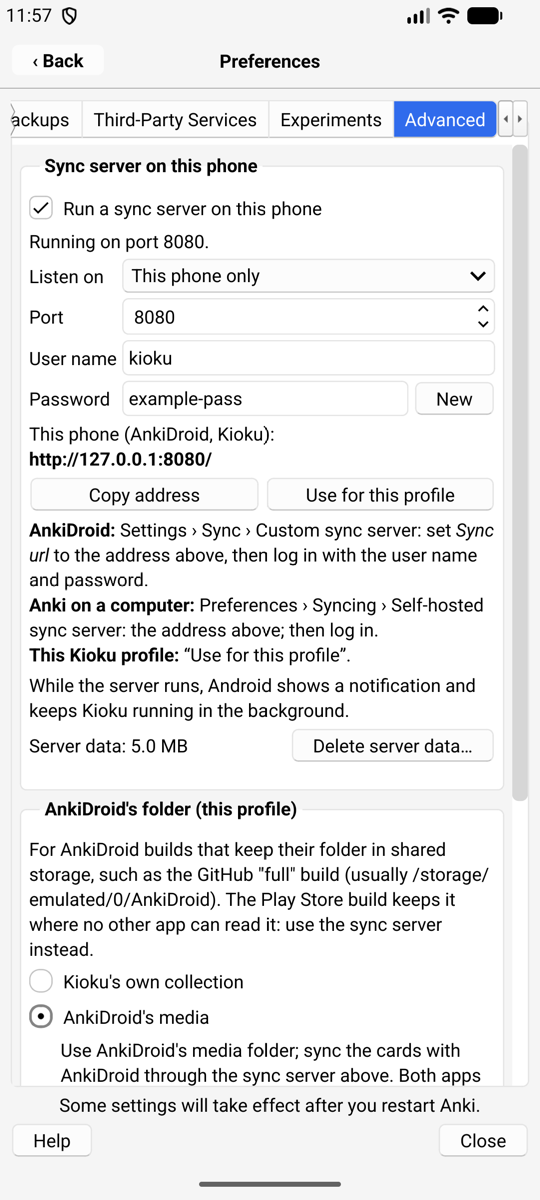
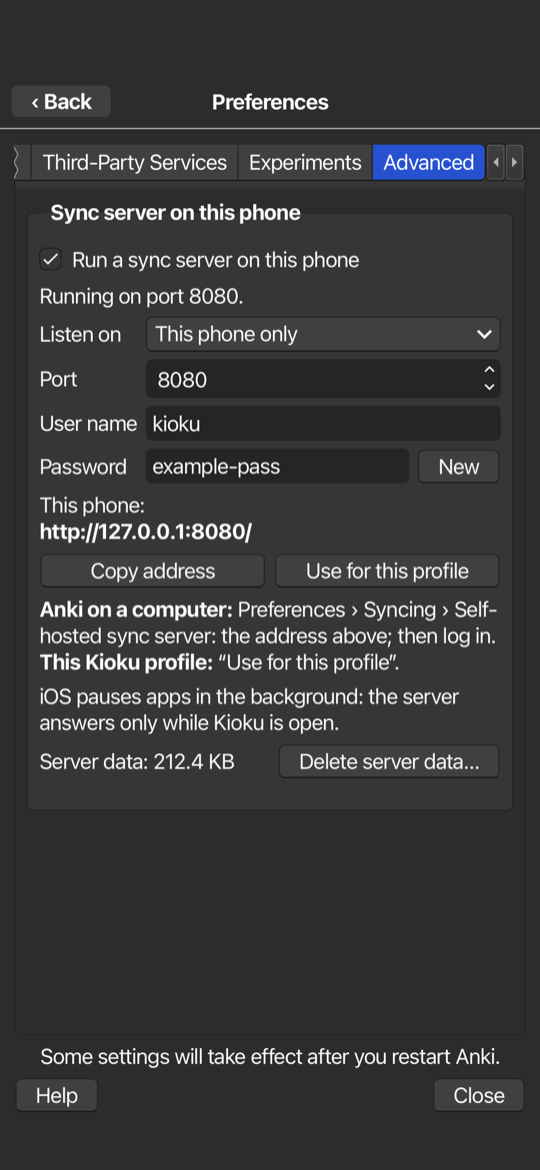
Sync server on this phone
Kioku can run Anki’s own sync server (the one behind anki --syncserver) on
the phone. Then the phone can be the sync server, with no AnkiWeb needed:
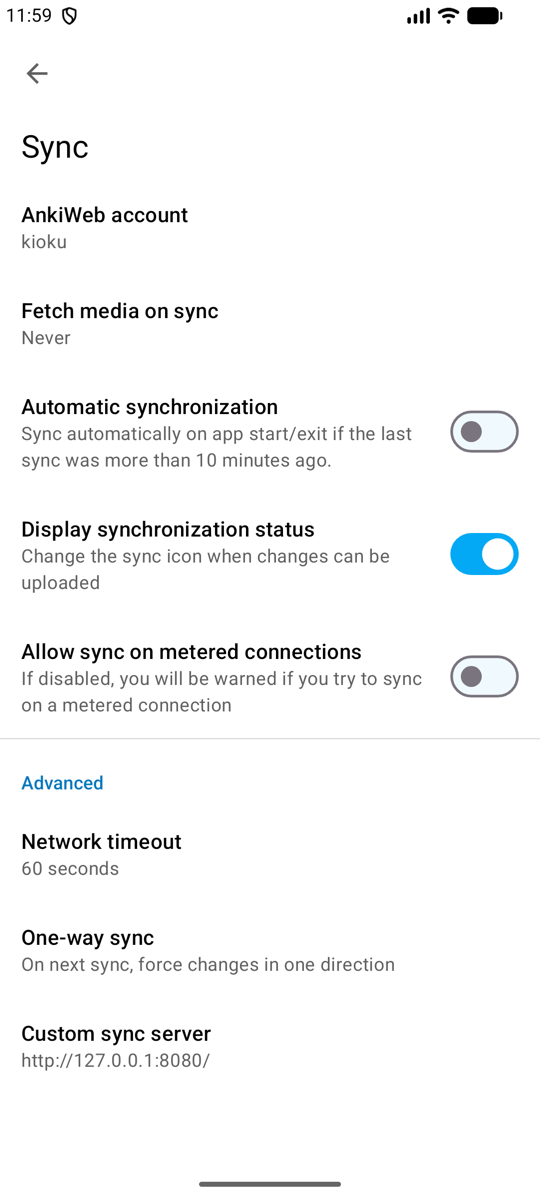
- AnkiDroid on the same phone syncs with Kioku: Settings › Sync ›
Custom sync server › Sync URL
http://127.0.0.1:8080/, then log in with the user name and password shown in Kioku. - Kioku’s own profiles sync with it: press Use for this profile.
- Anki on your computers syncs with it over Tailscale (or your Wi-Fi): Preferences › Syncing › Self-hosted sync server.
| Android | iPhone | Android’s notification |
|---|---|---|
 |  |  |
| Setting | Meaning |
|---|---|
| Listen on: This phone only | only apps on the phone can connect (default) |
| Listen on: Tailscale | the phone’s Tailscale address; your Tailscale devices can connect, encrypted by Tailscale |
| Listen on: All networks | any device on the same Wi-Fi or VPN can connect. Plain HTTP: only on networks you trust |
| Port | 8080 by default; choose another if an app already uses it |
| User name, password | a password is made up when you first turn the server on. New makes another one; devices then log in again |
| Delete server data | removes everything synced to the phone’s server; each device’s next sync is a full upload |
Things to know:
- The server keeps its own copy of everything synced to it (collection and media) in Kioku’s private storage. It needs that much free space.
- A device that syncs with the phone no longer syncs with AnkiWeb.
- The first time, choose Upload on the device that has your cards and Download on the others.
- Two devices syncing at the same moment: one of them gets Anki’s “Only one copy of Anki can sync to your account at once” error. Nothing is lost; sync it again a moment later.
- Android: while the server runs, a notification shows and Kioku keeps running in the background (its Stop action stops the server until Kioku starts again). Allow notifications when Android asks, or the notification stays hidden.
- iPhone: iOS pauses apps in the background, so the server only answers while Kioku is open. It starts again by itself when you come back.
AnkiDroid’s media (Android)
Applies to: Android native, Android Termux
For large media collections on a phone with AnkiDroid: a Kioku profile can
use AnkiDroid’s collection.media folder instead of its own, so the media is
stored only once. The cards still come from the profile’s own collection,
which syncs with AnkiDroid through the sync server above. Both apps can stay
open.
This works only with AnkiDroid builds that keep their folder in shared storage,
such as the GitHub “full” build (usually /storage/emulated/0/AnkiDroid). The
Play Store build keeps its folder where no other app can read it: use the sync
server alone instead.
Setting it up:
- Turn on the sync server and press Use for this profile.
- In AnkiDroid: Settings › Sync › Custom sync server (the address shown in Kioku), log in, and set Fetch media on sync to Never.
- Sync AnkiDroid first (Upload if it asks), then the Kioku profile.
- In Kioku: Preferences › Advanced › AnkiDroid’s folder › AnkiDroid’s media. Allow All files access when asked. Close Preferences: the profile opens again with AnkiDroid’s media.
| AnkiDroid: Settings › Sync | Kioku: Preferences › Advanced |
|---|---|
 | 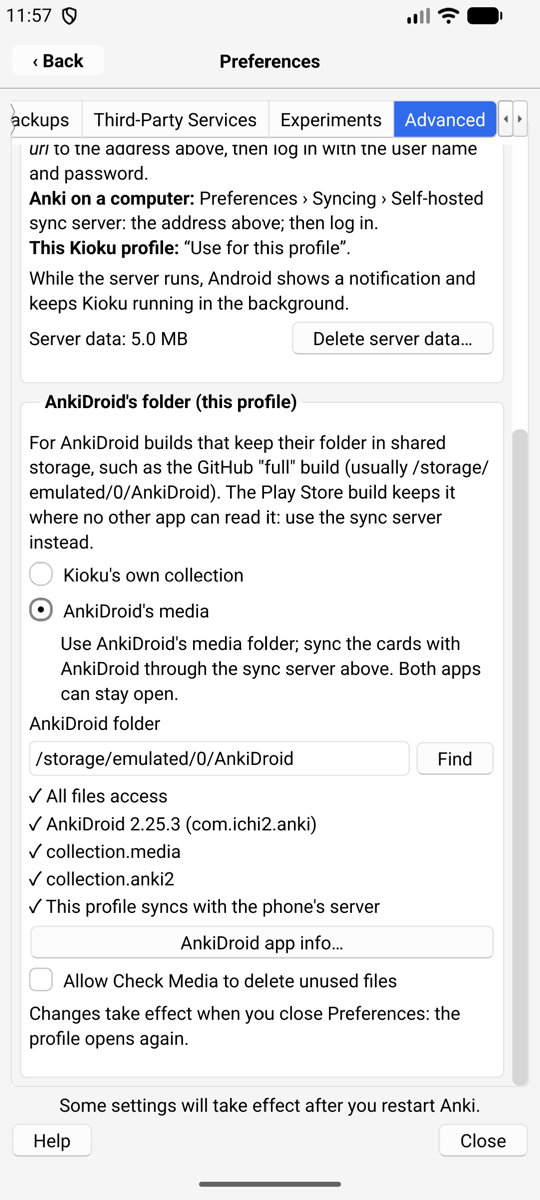 |
The checks under the choices show what is missing, if anything: All files access (with a button that opens Android’s setting), the AnkiDroid version, the folder’s contents, and whether the profile syncs with the phone’s server.
What changes for that profile:
- Media sync is turned off (Preferences › Syncing).
- Media you add in Kioku goes straight into AnkiDroid’s folder.
- Check Media won’t delete unused files unless you allow it: a file may belong to a card AnkiDroid hasn’t synced yet. Sync both apps first.
- Restoring a whole collection (
.colpkg) is turned off for the profile. - The profile’s own media folder is left as it was, and comes back if you switch back to “Kioku’s own collection”.
If AnkiDroid’s folder can’t be opened (no permission, folder moved), the profile opens with its own collection and Kioku says why.
Syncing when you switch between Kioku and AnkiDroid
Android native only. In the Termux variant, sync the Kioku profile by hand (or when Anki opens and closes) and AnkiDroid with its Sync button.
Anki syncs automatically when a profile opens and closes, but phone apps are rarely closed. So a Kioku profile that syncs with the phone’s server also syncs when you switch apps, as long as Automatically sync on profile open/close is on (Preferences › Syncing; the checks in the Advanced tab warn when it is off):
- Leaving Kioku with changes: Kioku sends them to the server before Android shows the next app (a local sync takes about 60 ms; the first one after Kioku starts can take over a second, and then finishes in the background). Only a normal sync runs then, without media and without questions.
- Coming back after more than 2 seconds: Kioku runs Anki’s own sync, which brings in AnkiDroid’s changes.
- A sync that needs a full upload or download is never done in the background: Kioku asks when you are back, as Anki always does. A sync error is shown when you are back too.
AnkiDroid’s own automatic sync (Settings › Sync › Automatic synchronization) runs only when it starts or closes, and only if its last sync was more than 10 minutes ago. For a quick switch, tap AnkiDroid’s Sync button after opening it (to get Kioku’s changes) and before going back to Kioku (to send yours).
If both apps change the same card between two syncs, the later change wins, as with any Anki sync; review history from both is kept.
Why not open AnkiDroid’s collection directly?
The Advanced tab lists AnkiDroid’s collection (not available). Tapping it explains why instead of turning it on:
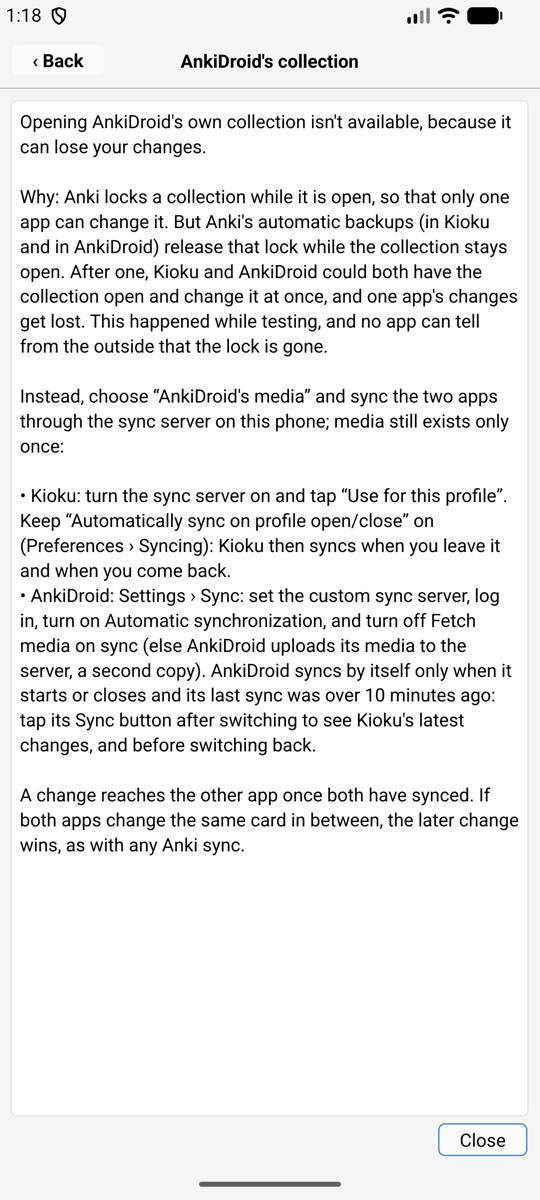
Anki locks a collection while it is open, so that only one app can change it. But Anki’s automatic backups, in Kioku and in AnkiDroid, release that lock while the collection stays open: the backup reads the file through a second file handle, and closing that handle drops the app’s lock on the file. After a backup, both apps could have the collection open at once. That happened while testing, and AnkiDroid’s answers were lost. Neither app can tell from the outside that the lock is gone, so Kioku doesn’t offer it until Anki (in both apps) keeps its lock. Details: testing.md.
“AnkiDroid’s media” with the sync server above gets the same result safely: media exists once on the phone, and each app has its own small copy of the cards.
Remote desktop
Applies to: Android Termux
Use Kioku’s Anki from a computer: in a web browser, or in any VNC viewer, on a desktop-sized screen with a real mouse and keyboard. The phone does the work and keeps your collection; the computer only shows it.
| The Remote page | While it is on | In a web browser |
|---|---|---|
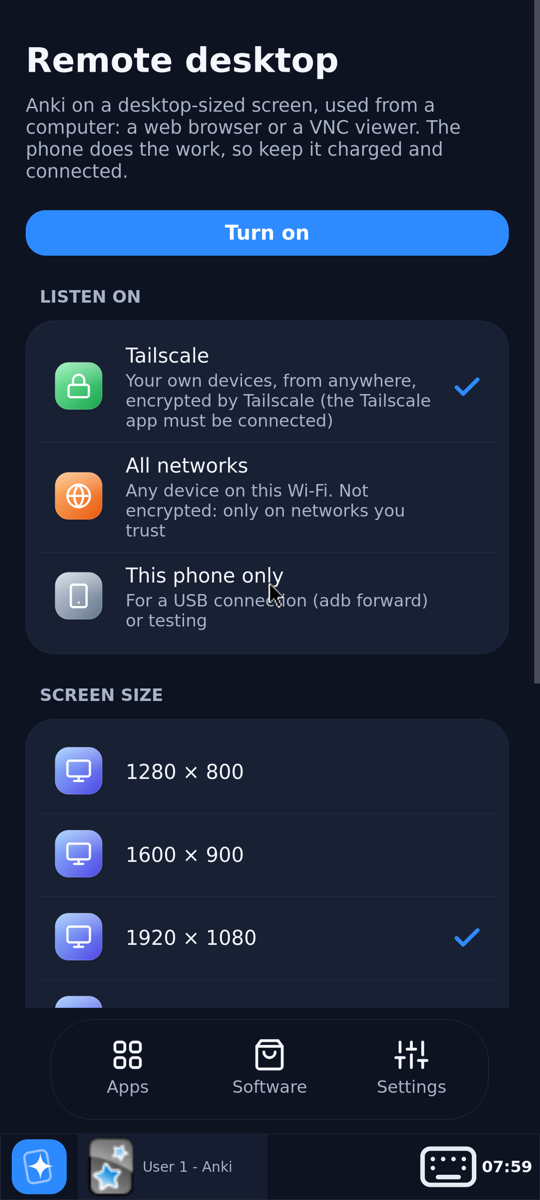 | 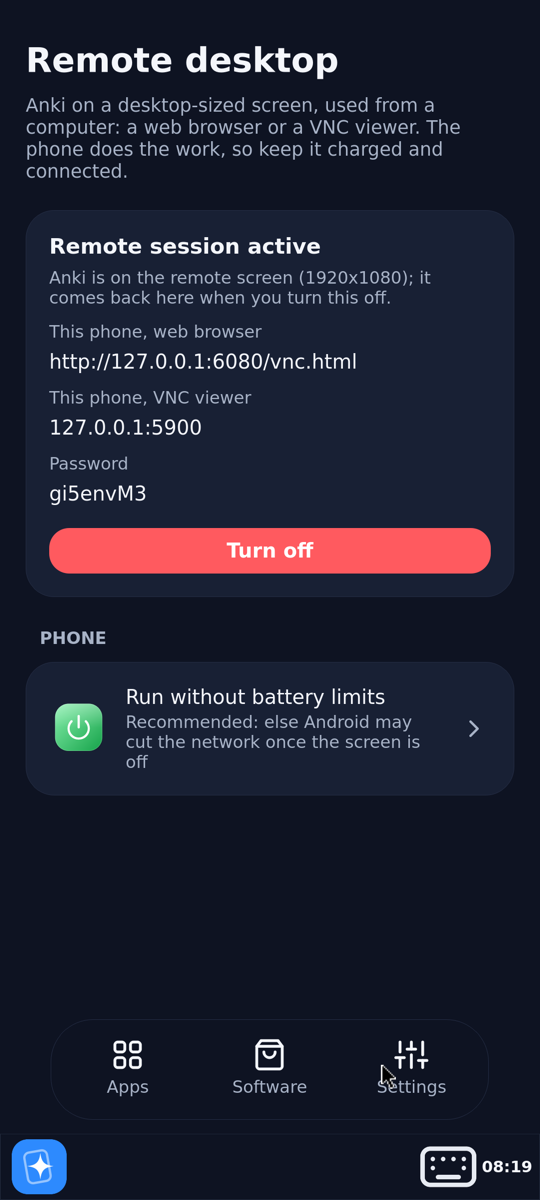 | 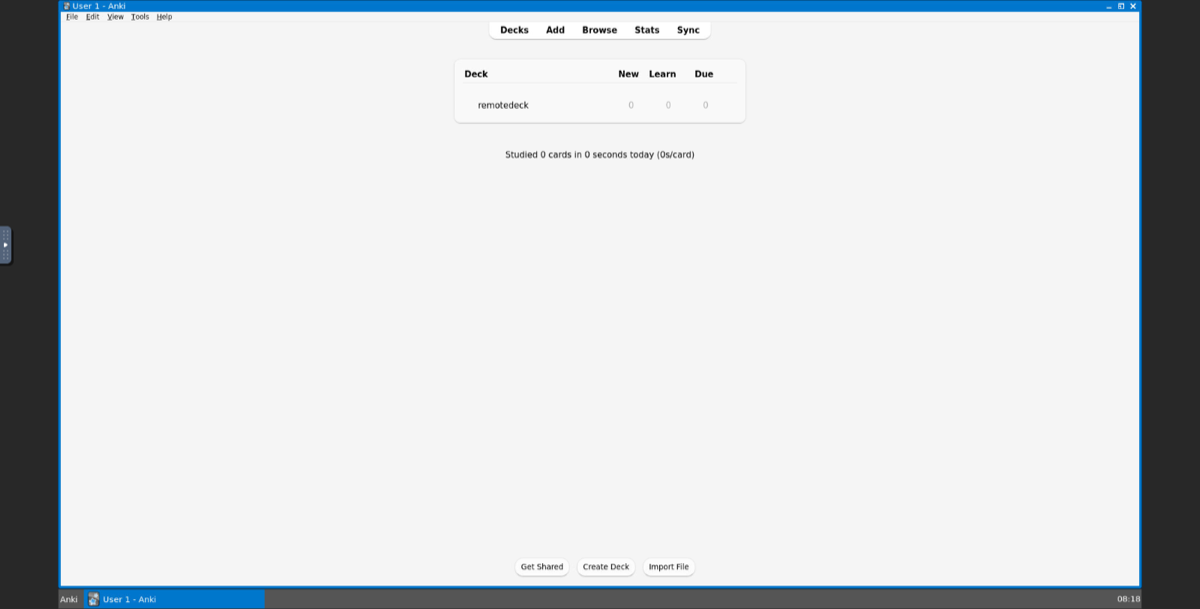 |
Settings › Remote desktop › Turn on. Anki closes on the phone (it saves first, as when it quits) and opens on the remote screen. The page then shows the addresses to open on the computer and the password. The phone shows Remote session active until you turn it off; Anki then moves back to the phone.
Connecting
| From | Open |
|---|---|
| a web browser | http://<address>:6080/ (the page shows the full address), then enter the password |
| a VNC viewer (TigerVNC, RealVNC, macOS Screen Sharing, Remmina) | <address>:5900, then the password |
Where Kioku listens (choose it before turning it on):
| Listen on | Who can connect |
|---|---|
| Tailscale (default) | your own devices on your Tailscale network, from anywhere. Tailscale encrypts the connection. The Tailscale app must be connected on the phone. |
| All networks | any device on the same Wi-Fi or VPN. Not encrypted: VNC only scrambles the password check. Use it only on networks you trust. |
| This phone only | nothing outside the phone; for a USB cable with adb forward tcp:6080 tcp:6080 && adb forward tcp:5900 tcp:5900, then http://localhost:6080/vnc.html on the computer. |
The password is made up when you first open the page; tap it for a new one. VNC uses at most 8 characters of a password, so it is 8 random letters and digits.
Screen sizes: 1280 × 800, 1600 × 900, 1920 × 1080 (default) and 2560 × 1440, or Custom: any width × height from 640 × 480 to 7680 × 4320, such as a tablet’s 2388 × 1668. The web viewer scales the screen to the browser window.
With the XFCE desktop, Settings › Display can change the resolution, up to the size chosen here; the viewer follows. Scale there doesn’t work on the remote screen (it has no hardware to scale with): the screen comes back as it was after a few seconds. For bigger text and buttons use Settings › Appearance › Settings › Window Scaling, or choose a smaller screen size here.
While it is on
- Anki runs on the remote screen at 100% size, without the phone’s touch changes (on-screen keyboard, one-finger scrolling). For bigger text and buttons, change Anki’s Preferences › Appearance › User interface size there (up to 300%) and restart Anki from the taskbar: the remote screen keeps its own size, separate from the phone’s. Its windows have a taskbar, with an Anki button to open it again if you close it.
- Tapping Anki on the phone shows the Remote page instead: Anki can be open in one place only.
- Other apps on the phone’s desktop keep working on the phone.
- The phone keeps the CPU and Wi-Fi awake (a wake lock and a Wi-Fi lock), and the notification says that the remote desktop is on. This uses battery: keep the phone charging for long sessions.
- Run without battery limits (on the Remote page): Android otherwise stops the network of an app with the screen off after a while (Doze), which ends the session. Android asks once; the page shows whether it is allowed.
Turning it off
Turn off on the Remote page. Anki on the remote screen closes (it saves first) and opens on the phone again. If Anki doesn’t close because one of its windows is asking something (an unsaved card in Add, say), the session stays on so you can answer it on the computer; then turn it off again.
Power off in Settings also ends the remote session first.
If Kioku is stopped some other way (Android ends it, or the phone restarts), the remote session is gone too, and Anki opens on the phone the next time.
Troubleshooting
For problems inside Anki itself (a deck, a sync error message, card templates), see Anki: Troubleshooting.
Known issues
| Issue | Variant | Workaround |
|---|---|---|
Exports and PDFs are in Android/data/…, hidden from most file managers on Android 11+ | Android | copy over USB, or use AnkiWeb sync |
| Back while reviewing leaves the app instead of returning to the deck list | Android | tap Decks in the top bar |
| The card types editor (Cards…) is cramped in portrait | iOS, Android | turn the phone |
| The sync conflict box (Upload/Download) has a large empty gap | iOS | it works; tap a button |
| Review Heatmap is slightly wider than the screen | iOS, Android | drag sideways |
| History button shows “History ▯” in Add | Android | cosmetic |
| Add-ons that start programs (MeCab readings) | iOS, Android | use the Termux variant or the Docker image |
iOS = iPhone/iPad, Android = Android native, Termux = Android Termux.
iPhone, iPad
Kioku closes right after choosing the language (iPad, iOS 18)
Fixed in 0.2.2. Two causes: VoiceOver or another accessibility feature running, and iOS 18’s WebKit. Update to 0.2.2 or newer.
Kioku doesn’t open any more
A free Apple ID’s signature expires after 7 days. Refresh it in AltStore or
SideStore, or install the .ipa again: your data is kept.
From TestFlight: the build expired (90 days after upload). Install the newer build in TestFlight, or get the link again from the signup form if there’s none. Your data is kept.
AltServer
“AltServer could not retrieve anisette data value “machineID”” (newer macOS, such as the macOS 27 betas): AltServer can’t get the device data Apple’s sign-in needs. Until AltStore fixes it:
- install the
.ipawith Sideloadly instead; - or try a community AltServer build with an anisette fix, such as kimziro/altserver-macos27-anisette-fix or an-vo90/AltServer-1.8-build97-Anisette-Fix-macos27-alpha. These are unofficial and not reviewed by Kioku: they handle your Apple ID sign-in, so use them only if you trust them, preferably with a separate Apple ID made for sideloading.
“Failed to verify code signature … (The provisioning profile is banned.)”: Apple has temporarily blocked sideloading for that Apple ID. Wait, or use another Apple ID only for sideloading.
Android, native
No sync server notification
Allow Kioku’s notifications in Android’s settings (Apps › Kioku › Notifications). See Sync server.
Card audio or {{tts}} is silent
Check the media volume. For {{tts}}, install a voice for the card’s
language in Android’s Settings › Text-to-speech.
Android, Termux
The first start takes long
Unpacking the runtime takes about a minute (longer on slow phones), after installing and after each update.
Start-up fails
Use the buttons on the error screen: Retry, Safe mode (Anki without add-ons), Repair runtime (decks kept), Share log. See Termux desktop.
A Linux app doesn’t scroll or select as expected
Switch Settings › Touch screen / Mouse pad. See Termux desktop.
Self-hosted server (Docker)
The page stays black or doesn’t connect
Browsers play the stream only from a secure page: open it through your
reverse proxy’s https:// address (or http://localhost on the server
itself), not http://<server address>:3000. The proxy must pass
WebSockets. See HTTPS.
No sound
Click the page once (browsers wait for a click before playing sound), and check the speaker button in the side menu.
Anki says it can’t write its files
anki-config must belong to the PUID/PGID user, for example after
copying a collection there: sudo chown -R 1000:1000 anki-config.
Anki was closed
It opens again by itself after a second. To change what runs, right-click the empty desktop.
What the container did
docker compose logs anki. Anki’s own log is in anki-config/Anki2/logs.
Reporting a bug
Open an issue on GitHub with:
- the variant, Kioku version (Help › About) and phone model/OS version (Docker: the image tag and your browser);
- what you did and what happened;
- the log, if you can: iPhone,
kioku.login Files › Kioku; Android native,Android/data/io.ankidesk.kioku/files/kioku.log; Termux, Share log on the error screen.
FAQs
Is this the real Anki? Yes: Anki desktop’s own Python code and Rust core, unmodified, with a layer that fits its windows to a phone. Your collection is a normal Anki collection.
Why not AnkiDroid or AnkiMobile? Use them if they do what you need. Kioku is for desktop add-ons and the desktop’s own Browse, editors and tools on the go.
Can I use Kioku and AnkiDroid together? Yes. Sync both with AnkiWeb, or with the phone’s own sync server. On Android, a profile can also share AnkiDroid’s media folder.
Can Kioku open AnkiDroid’s collection directly? No: it could lose AnkiDroid’s changes. Why.
Does it cost anything? Is there an account? No. Kioku is free and open source, with no account, ads or tracking. AnkiWeb sync uses your own AnkiWeb account.
Where’s Kioku in the App Store or Play Store? It isn’t, and there’s no plan for the App Store. Install it from GitHub Releases; on iPhone and iPad, a TestFlight build is available: sign up.
Which Anki version is inside? Help › About shows it. Kioku 0.2.3 and later have Anki 26.09.3.
Can I use it on a computer? Yes, in a browser: the web version runs in the tab (experimental), and the Docker image runs Anki desktop on your server and shows it in any browser, phones included. On your own computer, Anki desktop itself is the better choice.
My collection is huge (gigabytes of media). Which one? On a phone, any app variant keeps it on the phone. To use one copy from several devices without syncing it to each, use the self-hosted server: only the screen travels to the browser.
Does it work on tablets? Yes: iPads and Android tablets, in portrait and landscape.
Is there an Intel/32-bit Android build? No: arm64 only. The Docker image runs on amd64 and arm64 servers.
Changes
All releases: GitHub Releases.
Self-hosted server (Docker)
New: ghcr.io/krmanik/kioku-desktop, Anki desktop 26.09.3 on your server
or NAS, used from any browser. Your collection, media and add-ons stay on
the server; the browser only shows Anki’s screen.
Guide.
0.2.5
- Preferences › User interface size works (50–200%), and Preferences pages scroll instead of squeezing their rows (iOS, Android).
- No black flash when the keyboard opens in Add and Browse; the Add window’s tags and buttons stay above the keyboard (Android).
- Sync server on the phone and AnkiDroid’s media (Termux), like the native variants.
- Remote desktop: a custom screen size from 640 × 480 to 7680 × 4320, and its own interface size (Termux).
- Fixed a crash on a tap after a window or dialog closed (iOS).
0.2.4
- Add-on pages fit the phone screen; the deck list no longer flickers from desktop to phone layout (iOS, Android).
- Browse: add-on buttons next to the search box get their own row, and the sidebar edge is wider and easier to drag (iOS, Android).
- The progress window has a Cancel button and shows as a small card (iOS, Android).
- No more freezes at start or when opening Preferences or a menu while an accessibility service (a password manager, Switch Access) is on (Android).
0.2.3
Anki 26.09.3.
- TestFlight builds for iPhone and iPad (sign up).
- Full screen: swipe right to get Exit Full Screen (iOS, Android).
- Add-on side panels and pop-ups fit the phone; tooltips fit its width (iOS, Android).
- Anki’s update prompt points to Kioku’s releases.
0.2.2
Anki 26.08.1.
New:
- Sync server on the phone (iOS, Android, Preferences › Advanced): AnkiDroid, Kioku’s profiles and Anki on your computers can sync with the phone instead of AnkiWeb. Guide.
- AnkiDroid’s media (Android): a profile can use AnkiDroid’s media folder, and syncs when you switch between the apps. Guide.
- Remote desktop (Termux): use the phone’s Anki from a computer’s web browser or VNC viewer. Guide.
{{tts}}text-to-speech with the phone’s voices (iOS, Android).- Statistics › Save PDF on iPhone (iOS).
- Ogg/Opus card audio on iPhone (iOS).
- The review screen’s Edit and More are in the Edit menu (iOS, Android).
Fixed:
- Crash right after choosing the language on first start with VoiceOver or another accessibility feature on, and on iOS 18 (iOS).
- The keyboard’s Enter key now submits Browse’s search, prompts and the login (Android).
- Status and navigation bars disappeared after another app’s popup, such as the “Open with” chooser (Android).
- Power off in the Termux desktop didn’t end the session (Termux).
iOS = iPhone/iPad, Android = Android native, Termux = Android Termux.
Earlier
See GitHub Releases.
Kioku privacy policy
Last updated: 27 October 2026
Kioku (the iOS, native Android and Termux apps, the web version and the Docker image from github.com/krmanik/kioku) does not collect, store or share any personal data. It has no analytics, no ads, no tracking and no account of its own.
Your data
Your collections, media, add-ons and settings stay on your device, in the app’s own storage (on iOS, Kioku’s folder in the Files app). The developer never receives them.
- Web version: they stay in your browser’s storage on that device. The site is served by Cloudflare Workers, which stores nothing of yours. Its relay passes AnkiWeb sync (and the few services it allows for add-ons) through as an encrypted connection made in your browser, so the relay can’t read it.
- Docker image: they stay on the server you run it on. The browser receives only the picture and sound of Anki’s screen, from your server.
Network connections
Kioku only connects to the internet when you use a feature that needs it:
- AnkiWeb sync, when you sign in with your AnkiWeb account. Your login and collection go to AnkiWeb, run by Ankitects, under AnkiWeb’s terms and privacy policy.
- Downloading add-ons and shared decks from AnkiWeb.
- Content in your cards that points to the internet, such as images, audio, videos or fonts loaded by a card template.
- Add-ons you install: they are third-party programs and may connect to their own services (for example text-to-speech). Check each add-on’s description.
- Kioku’s sync server and remote desktop, only if you turn them on: they accept connections from the devices you choose (this phone, your Tailscale network or your Wi-Fi). Nothing is sent to the developer.
TestFlight
If you install Kioku through Apple’s TestFlight, Apple handles the beta under its own terms and privacy policy. Apple then shows the developer what TestFlight collects for every beta app: the name and email address you were invited with (if invited by email), your device model and iOS version, installs and sessions, crash reports, and any feedback or screenshots you send through TestFlight. Kioku itself still sends nothing. The TestFlight signup form (Google Forms) collects your Google account’s email address only to allow one signup per account, because TestFlight has a limited number of testers.
Children
Kioku does not knowingly collect information from anyone, including children.
Changes and contact
Changes to this policy are published on this page. Questions: open an issue.