Self-hosted server (Docker)
Applies to: Docker
Run the real Anki desktop app on your own server or NAS and use it from any browser. Anki, its add-ons and your whole collection (media included) stay on the server: the browser only shows Anki’s screen and sends your keyboard, mouse and touches, so a large collection is never downloaded, copied or synced to your devices. Experimental: back up first.
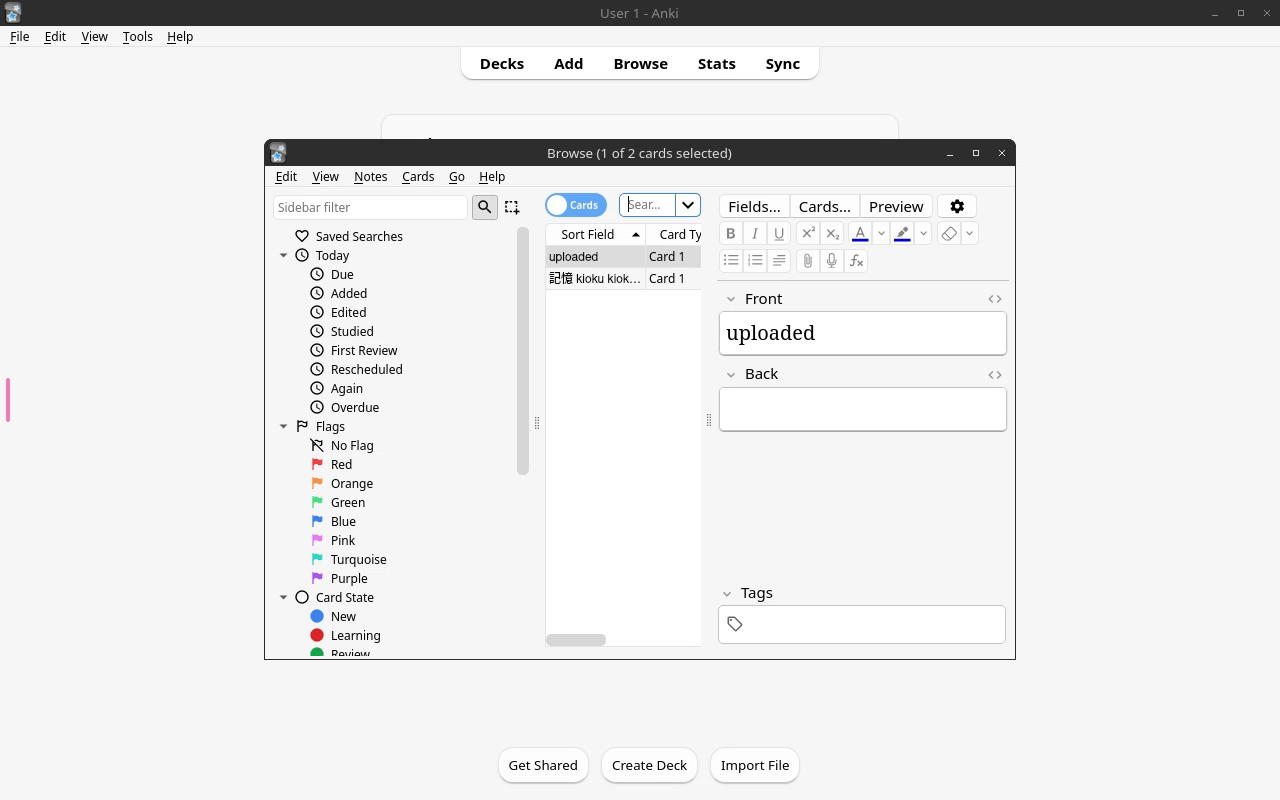
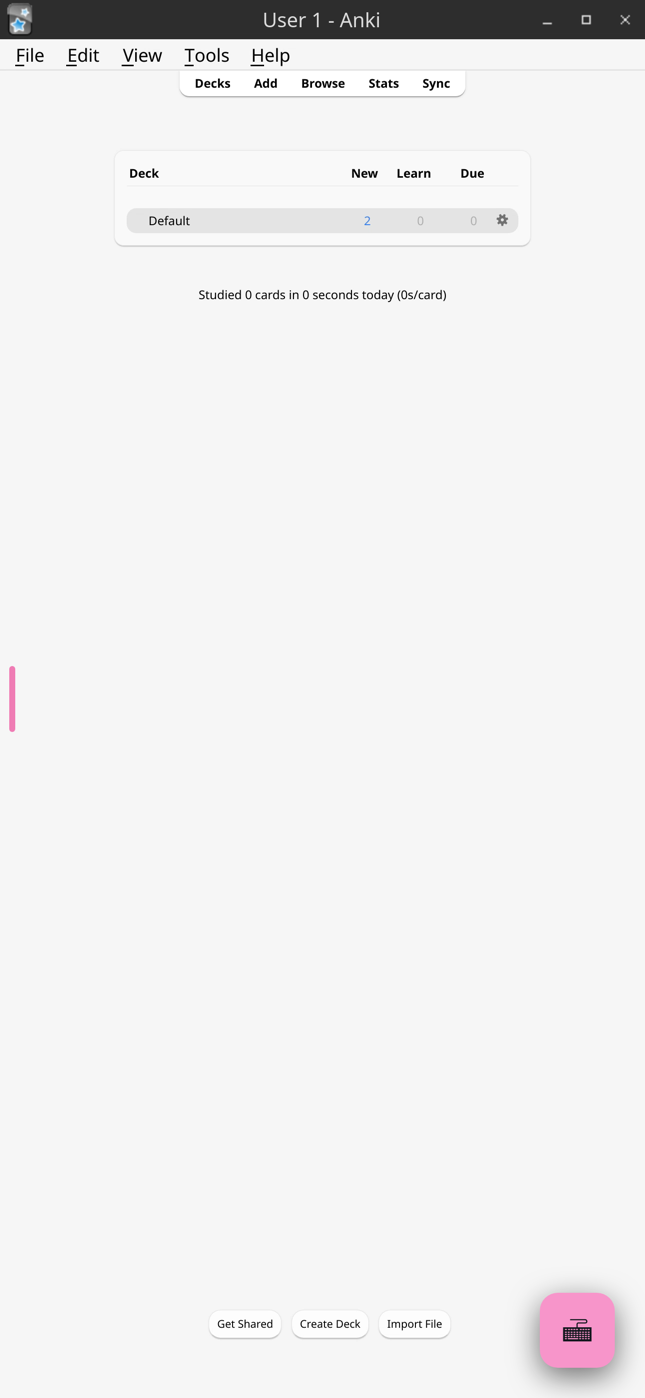
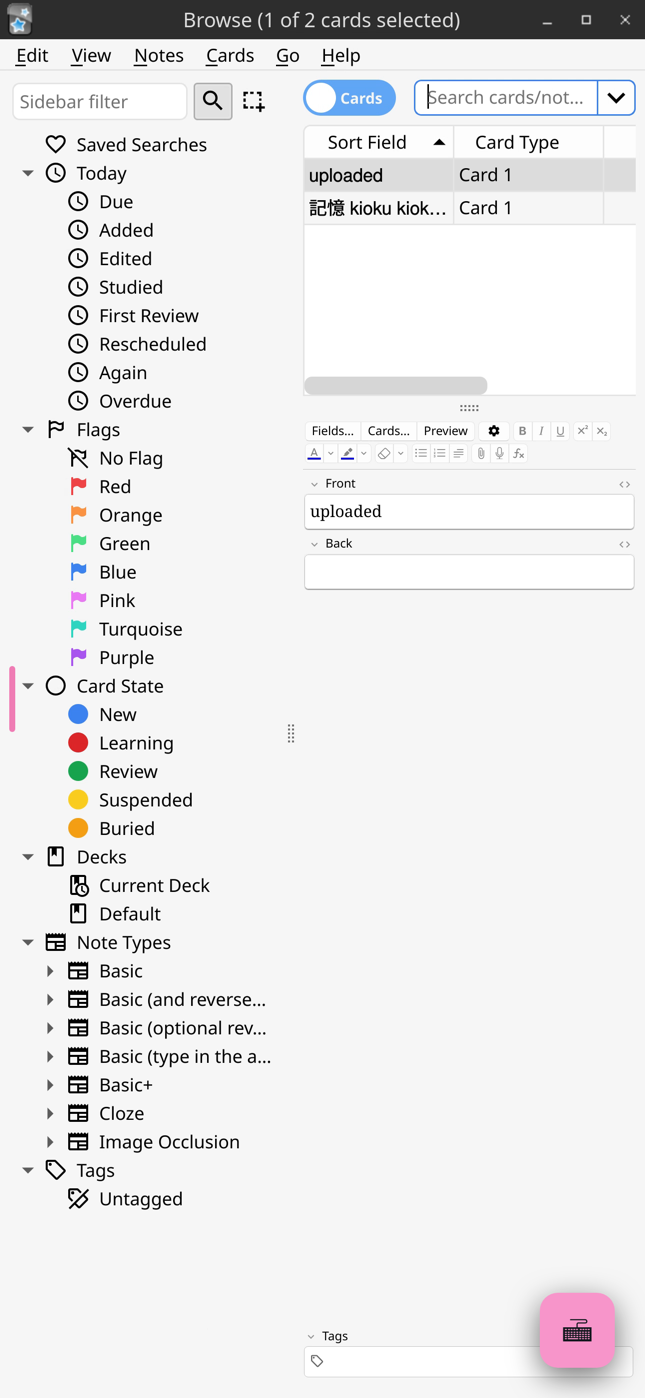
On a phone, with ANKI_FIT_SCREEN | Browse on a phone |
|---|---|
 |  |
Start it
With Docker Compose (compose.yaml):
services:
  anki:
    image: ghcr.io/krmanik/kioku-desktop:latest
    restart: unless-stopped
    shm_size: 1gb
    stop_grace_period: 1m
    ports:
      - "127.0.0.1:3000:3000"
    environment:
      PUID: 1000
      PGID: 1000
      TZ: Etc/UTC
      CUSTOM_USER: anki
      PASSWORD: change-me
    volumes:
      - ./anki-config:/config
docker compose up -d
Set TZ to your time zone (for example Europe/Berlin): Anki’s day starts
by it. Everything Anki keeps is in anki-config/Anki2: profiles,
collections, media, add-ons and backups (each profile’s backups folder).
Back that folder up.
The image is for 64-bit Intel/AMD and ARM servers.
Your existing collection
Stop the container, then copy your Anki folder from the computer where you
use Anki desktop (where it is)
into anki-config/Anki2, and start it again:
docker compose stop
rsync -a ~/.local/share/Anki2/ server:path/to/anki-config/Anki2/
docker compose start
The files must belong to the PUID/PGID user. You can also sync it down
from AnkiWeb instead (see Syncing).
HTTPS
Open it through a reverse proxy with a certificate: browsers play the stream
only on https:// (or http://localhost on the server itself). Port 3000 is
plain http for the proxy; the container’s port 3001 is https with a
self-signed certificate, for trying it on your network. The proxy must pass
WebSockets.
Caddy
anki.example.com {
    reverse_proxy 127.0.0.1:3000
}
nginx
server {
    listen 443 ssl;
    server_name anki.example.com;
    # ssl_certificate ...;
    location / {
        proxy_pass http://127.0.0.1:3000;
        proxy_http_version 1.1;
        proxy_set_header Upgrade $http_upgrade;
        proxy_set_header Connection "upgrade";
        proxy_set_header Host $host;
        proxy_read_timeout 1h;
        proxy_buffering off;
    }
}
CUSTOM_USER/PASSWORD is a basic browser login. For a server reachable
from the internet, put a stronger login in front (Authelia, Authentik,
your proxy’s own) and never expose it without one: whoever gets in can use
the whole container.
Using it
- One screen for all devices. Every browser that opens it sees the same Anki; you can switch between your computer and phone in the middle of a review.
- Sound plays in the browser. Click the page once if it stays silent: browsers wait for a click before playing sound.
- The side menu (the tab at the left edge) has the on-screen keyboard, clipboard, file transfer, full screen and the stream’s quality and scaling settings.
- Copy and paste text and images between your device and Anki (for example an image into the editor or Image Occlusion).
Files from your device
Anki only sees the server’s files. To bring a file in (a shared deck, a
.colpkg, images for notes or Image Occlusion), drop it on the page or use
Upload in the side menu: it lands in the Desktop folder, where
Anki’s Import and Add image windows open. Exports are saved in the
same folder by default, and Files in the side menu downloads them.
On a phone
Anki’s desktop layout is wider than a phone. Set ANKI_FIT_SCREEN: "true"
to fit it: on a screen narrower than a desktop, Anki’s pages are zoomed out
and its windows fill the screen; wider screens are left alone. The side
menu’s scaling setting changes the size of everything. Turn the phone
sideways for more room.
Settings
| Variable | ||
|---|---|---|
CUSTOM_USER, PASSWORD | browser login | |
PUID, PGID | 1000 | the user that owns anki-config |
TZ | Etc/UTC | time zone (Anki’s day starts by it) |
ANKI_FIT_SCREEN | true: fit Anki on phones (above) | |
ANKI_ARGS | extra arguments for Anki |
The image is built on LinuxServer’s Selkies base image; its settings (resolution, video quality, hardening) work as described there.
Syncing
Not needed between your devices. Sync works as in Anki desktop, with AnkiWeb or your own sync server, for example to also use AnkiDroid or the Kioku apps.
Add-ons
Add-ons run in Anki on the server, as on a Linux computer: install them from
Tools › Add-ons as usual. Add-ons that only ship code for Windows or
macOS don’t work. To reach an add-on’s web server (such as AnkiConnect)
from outside, make it listen on 0.0.0.0 in its settings and publish its
port in compose.yaml.
Updating and stopping
docker compose pull && docker compose up -d
Stopping the container closes Anki the way quitting does (its collection
closed, a backup made); allow it the minute in stop_grace_period.