Getting Started
Applies to: iPhone/iPad, Android native, Android Termux, web, Docker
First start
Like Anki on a computer, Kioku asks for the language the first time, then opens the deck list with an empty profile (User 1).
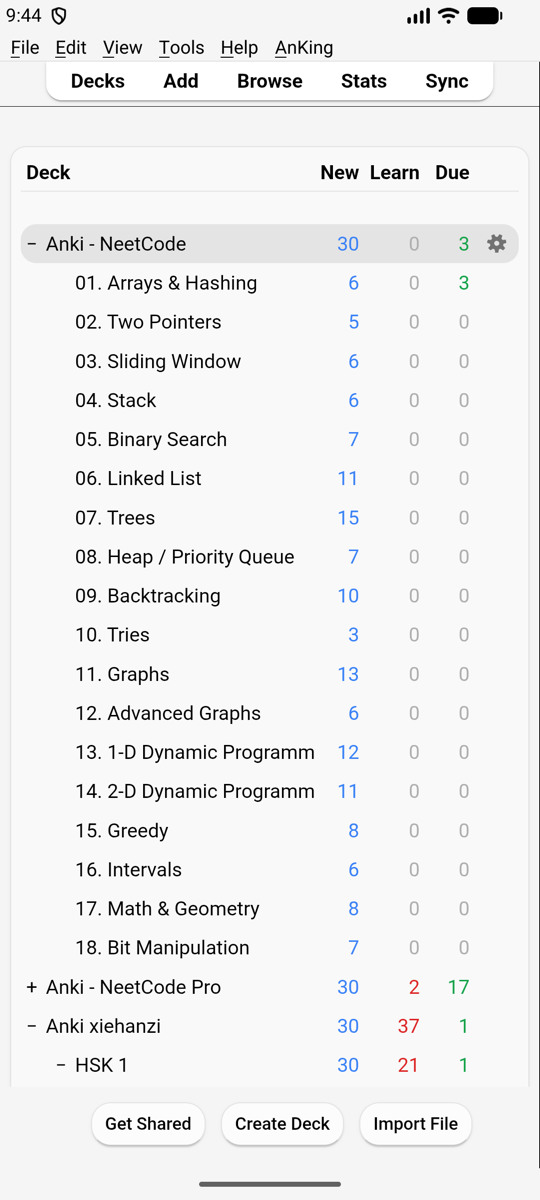
From here it’s Anki: see Getting Started in Anki’s manual.
Bringing your cards
Pick one:
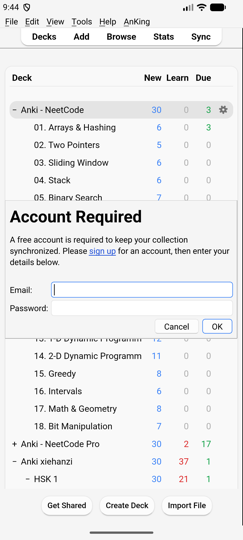
- AnkiWeb. Tap Sync in the top bar and log in with your AnkiWeb account. In an empty profile choose Download to get your collection. Login and media sync work as on a computer (Anki: Syncing). The login stays after restarting Kioku.
- A collection file. Export a
.colpkg(or.apkg) from Anki on your computer, put it on the phone, and import it: see Your Files. - AnkiDroid on the same Android phone. Sync both apps through the phone’s sync server, no AnkiWeb needed.
- Your server (Docker). Copy your whole Anki folder there: see Your existing collection.
Several people or setups? Use profiles (File › Switch Profile), as in Anki.
Next
- Using Kioku on a phone: how windows, Back and the keyboard work.
- Add-ons: installing desktop add-ons on the phone.